Profile
The profile is the central object in Lytics — every audience, personalization rule, export, and predictive model operates on profiles. Before you can build audiences or activate data, you need to understand how profiles are constructed from events, what fields exist on them by default, how identity rules connect data from different sources into a single record, and how to extend profiles with custom fields. This module gives you that foundation: navigating profiles in the UI, reading the schema layers, configuring custom fields, and using the Identity Explorer to inspect and debug individual profiles.
Overview and Navigation
Learning Objectives
By the end of this section, you will be able to:
- Define what a Lytics profile is and explain how it is constructed from events
- Navigate to an individual profile using two different paths in the UI
- Identify the three primary tabs of the profile view and what each contains
What Is a Lytics Profile?
A profile — also referred to as an entity — is the unified representation of a single individual in Lytics, constructed from all known events and attributes across every connected data source. Every event that enters the platform — a page view, an email open, a purchase, a form submission — is identity-resolved and merged into a profile. The result is a continuously updated record that reflects everything Lytics knows about one individual, whether they are anonymous or identified.
A profile is not a static export. It updates in real time as new events arrive and as Lytics recomputes behavioral models. Everything Lytics does — audience segmentation, web personalization, predictive modeling, export jobs — operates on profiles.
How a Profile Is Built
Profiles are the output of two parallel processes that run every time an event arrives:
-
Identity Resolution — Lytics examines the identifiers in the event (email, cookie, customer ID) and determines which profile this event belongs to. If the event introduces a new identifier that connects two previously separate profiles, those profiles are merged. For the full identity resolution model, see Identity Resolution.
-
Profile Materialization — Once identity is resolved, Lytics applies the schema's field mappings to the event data and updates the matching profile fields. Merge operators control how conflicting values are reconciled when data from different streams disagrees. For schema and merge operator configuration, see Schema.
The result: every profile represents the most current, most complete view of that individual, built automatically from every source you've connected.
Finding a Profile in the UI
There are two paths to look up an individual profile.
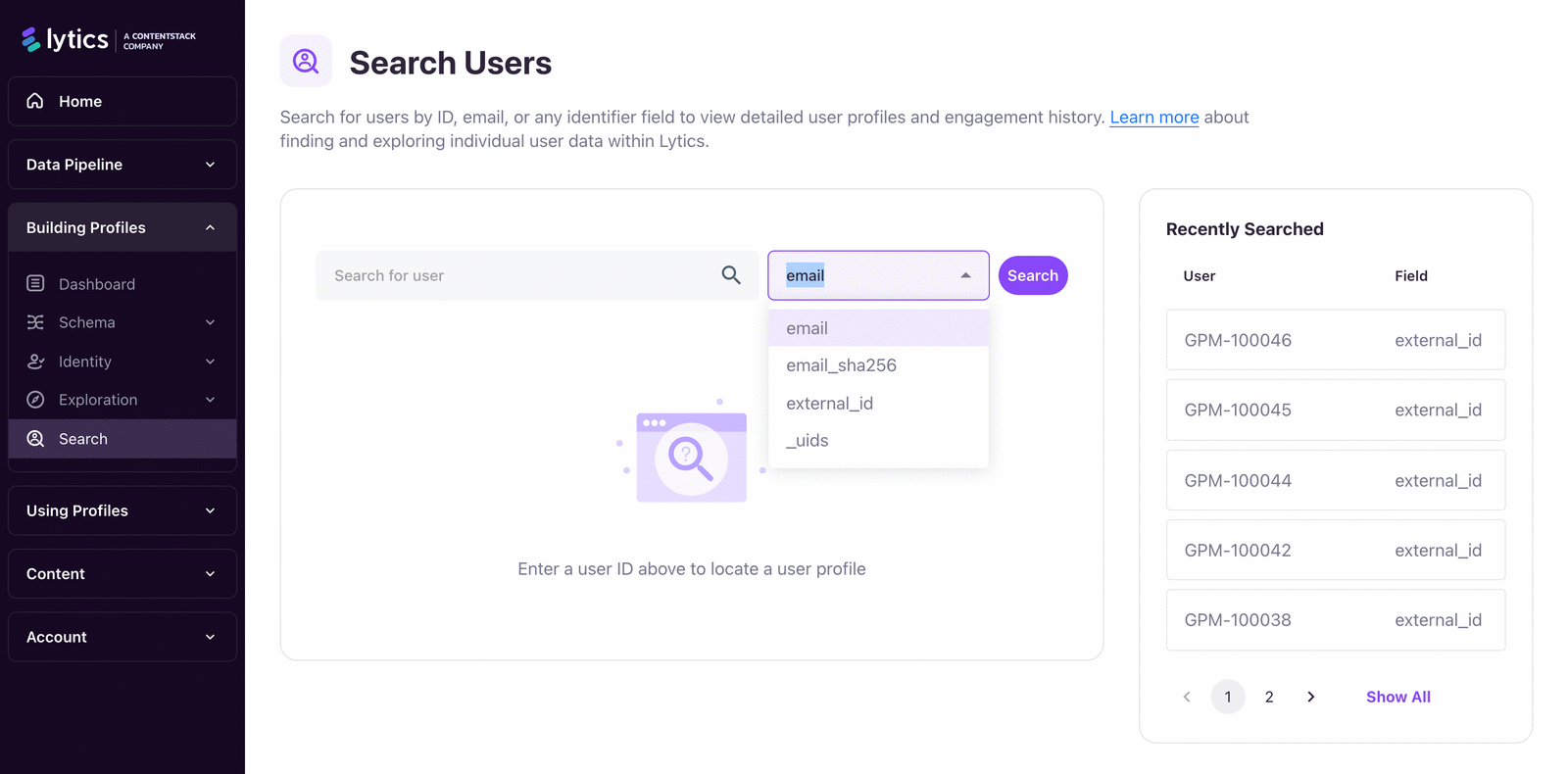
Path 1: Building Profiles > Search
- In the left navigation, expand Building Profiles.
- Select Search.
- In the search box, select the identifier type from the dropdown (default is Email) and enter the value.
- Click the matching result to open the profile.
This path opens the Identity Explorer — the full profile examination interface covered in Anatomy of a Profile.
Path 2: Using Profiles > Audiences > Find a User
- In the left navigation, expand Using Profiles.
- Select Audiences.
- In the expanded menu, select Find a User.
- Select the identifier field from the dropdown and enter the value.
If a search returns multiple profiles for a single identifier, identity fragments have not yet merged — or your identity resolution strategy has a gap. Contact Lytics support if you see this consistently.
The Profile View: Three Tabs
When you open a profile from the standard view (not the Identity Explorer), it is organized into three tabs:
| Tab | What It Contains |
|---|---|
| Intelligence | Behavioral scores, content affinity, recent activity by channel, event heatmap, and unique identifiers |
| Audiences | All current audience memberships for this profile, with audience sizes |
| Details | Raw field values from every data source — each value shows the contributing stream |
Use the Intelligence tab to assess a user's engagement state at a glance. Use the Details tab to verify what data is on the profile and which stream provided it. Use the Audiences tab to confirm that a profile is resolving into the correct segments.
The Details tab is your primary debugging tool. When a profile isn't behaving as expected in an audience or personalization rule, start here — verify the raw field values before investigating schema or audience logic.
Summary
A profile is a real-time, unified view of a single individual, built automatically from events across all connected data sources through identity resolution and schema mappings. You can look up profiles through two paths: Building Profiles > Search (which opens the Identity Explorer) or Using Profiles > Audiences > Find a User. The standard profile view organizes data into three tabs — Intelligence for behavioral scores and engagement signals, Audiences for current segment memberships, and Details for raw field values with source attribution. If a search returns multiple profiles for a single identifier, that indicates an identity resolution gap.
Documentation Links
Common Schema
Learning Objectives
By the end of this section, you will be able to:
- Distinguish between the universal schema and the common schema
- Name the key field categories in the universal schema and explain their purpose
- Identify which common schema fields are automatically populated from managed integrations
Two Schema Layers on Every Profile
Every Lytics profile has access to two schema layers: the universal schema and the common schema. Neither requires manual configuration — they are automatically populated as data flows in and as Lytics runs its models.
The universal schema is a set of computed, intelligent attributes applied to every profile in Lytics, regardless of data source, age, or whether the profile is anonymous or known. The common schema is a set of standard profile attributes that provide consistency across integrations — common fields normalize source-specific field names into a single canonical representation.
Universal Schema Fields
The universal schema is divided into five categories.
Identifiers
These fields link events from different sources to the same profile.
| Field | Description | Example |
|---|---|---|
_id |
Lytics-assigned unique profile ID | "4fafb5b3-b199-58f2-a68b-4b266b363dd1" |
_uids |
All web cookie IDs associated with this profile | ["50b772f5-a0be-42f2-8828-84b8db5d5a23"] |
email |
Email address (auto-standardized to lowercase) | "[email protected]" |
email_sha256 |
SHA-256 hash of the email — auto-computed when an email is present | "e43763..." |
external_id |
Custom first-party ID for linking to your proprietary systems | "abc123" |
Metafields
Metafields are system-level attributes that describe the health and breadth of the profile itself.
| Field | Description | Example |
|---|---|---|
_created |
Timestamp when the profile was first created | "2024-02-28T02:45:51Z" |
_modified |
Timestamp of the last profile modification | "2024-02-28T02:45:51Z" |
_last_scored |
Timestamp of the last behavioral scoring run | "2024-02-28T02:45:51Z" |
_num_events |
Total number of events processed for this profile | 81 |
_num_days |
Distinct days with recorded activity | 3 |
_num_streams |
Number of distinct data streams contributing data | 2 |
_streamnames |
Names of contributing streams | ["default"] |
_num_aliases |
Number of identity aliases, as calculated by identity resolution | 5 |
Use metafields to assess profile quality. A profile with high _num_events and _num_streams is well-populated across multiple sources. A profile with _num_events: 1 and _num_streams: 1 may be a thin or unstitched fragment.
Behavioral Scores
Lytics automatically computes nine behavioral scores for every profile. Each score is a 0–100 value relative to other profiles in your account — not an absolute measure.
| Field | What It Measures |
|---|---|
score_quantity |
Cumulative volume of activity over the profile's lifetime |
score_frequency |
How often the user interacts, relative to your most frequent users |
score_recency |
How recently the user was active, measured over a 1-year window |
score_intensity |
Depth of a typical session — not just how often, but how much per visit |
score_momentum |
Rate of change in engagement frequency — rising vs. declining |
score_propensity |
Likelihood to re-engage with more activity |
score_consistency |
Long-term regularity of daily engagement patterns |
score_maturity |
Length of the user's history, relative to your most mature users |
score_volatility |
Degree of variation in session depth over time |
Practical use:
score_momentumis one of the most actionable signals for timely intervention. A user with sharply rising momentum is in an active engagement cycle — an ideal moment for a conversion offer. A user with falling momentum is disengaging — an ideal trigger for a re-engagement campaign.
Interests
| Field | Description | Example |
|---|---|---|
lytics_content |
Topic-level interest scores derived from engagement with classified content | {"Cloud Infrastructure": 0.82, "DevOps": 0.65} |
hashedurls |
Map of hashed URLs the user has visited — feeds Lytics' interest engine | {"4058474390481920149": 5} |
lytics_content is the primary surface for content affinity in audiences and personalization. The values represent affinity strength, not raw visit counts. For more on how content is classified and how affinity is computed, see Content.
Intelligence
| Field | Description | Example |
|---|---|---|
_segments |
Current audience memberships | ["all", "anonymous_profiles", "power_users"] |
_split |
Randomly assigned 0–99 value for A/B testing and experiments | 44 |
_split2 |
Second random split — enables targeting down to 0.01% of profiles | 77 |
segment_prediction |
Scores from active Lookalike Models (0–1 range) | {"likely_to_churn": 0.47} |
segment_prediction_percentile |
Percentile ranking from Lookalike Models | {"likely_to_churn": 91} |
_split enables true randomized audiences without any behavioral conditions. An audience where _split < 50 gives you a stable, random 50% of profiles — essential for holdout groups and controlled experiments. _split and _split2 together enable targeting down to 0.01% of your profile population.
Common Schema Fields
Common schema fields cover standard profile attributes — personal details and contact information — normalized from whatever field names your source systems use.
Details
| Field | Description | Example |
|---|---|---|
first_name |
First name | "Jane" |
last_name |
Last name | "Doe" |
name |
Full name — included on every account by default | "Jane Doe" |
phone |
Phone number, auto-formatted to E.164 | "+15555555555" |
phone_mobile |
Mobile number, auto-formatted to E.164 | "+15555555555" |
address1 |
First line of address | "30 Rockefeller Plaza" |
address2 |
Second line of address | "Suite 1000" |
city |
City | "New York" |
region |
State or province | "NY" |
country |
Country | "USA" |
postal_code |
Postal code | "10112" |
birthday |
Birthday or date of birth | "July 22" or "2000-07-22" |
status |
Generic customer status | "active" |
Pre-Defined Mappings from Integrations
When you add a managed integration via Data Pipeline > Jobs, Lytics automatically creates common schema field mappings for that source. You don't define these manually — they are part of the integration's default configuration.
For example:
- Adding a Shopify import job creates purchase_total and related commerce fields, mapping Shopify's order data to them automatically.
- Adding a Salesforce import job creates CRM fields mapped from Salesforce's contact schema.
This means you can connect a source and immediately use standard profile attributes in audiences and personalization rules, without writing LQL mapping queries. For data outside the common schema, see Customization.
Summary
Every profile has two schema layers that require no manual configuration. The universal schema provides computed intelligence — identifiers, metafields, nine behavioral scores, content interest scores, and audience/model membership — on every profile regardless of data source. The common schema normalizes standard attributes like name, email, phone, and address from whatever field names your source systems use. When you add a managed integration, Lytics automatically creates common schema mappings for that source, so standard fields populate immediately.
Documentation Links
Identity Rules
Learning Objectives
By the end of this section, you will be able to:
- Navigate to the Identity Rules view and interpret its visualizations
- Explain the role identity rules play in connecting events to profiles
- Identify signs of a healthy vs. problematic identity resolution configuration
What Identity Rules Do
Every event that arrives in Lytics carries one or more identifiers: a cookie ID, an email address, a customer ID. Identity rules define which of those identifiers Lytics should use to stitch events together into profiles — and how to resolve conflicts when identifiers from different sources appear to disagree.
Without identity rules, Lytics would have no way to know that the anonymous web visitor with cookie 50b772f5 is the same person as the email subscriber [email protected]. Identity rules are what enable that connection.
The mechanics of identity graphs — traversals, neighbors, fragment stitching, graph compaction — are covered in depth in Identity Resolution. This section focuses on the operational view: how to see your identity rules and evaluate their health in the UI.
Navigating to Identity Rules
- In the left navigation, expand Building Profiles.
- Select Identity.
- Select Rules from the submenu.
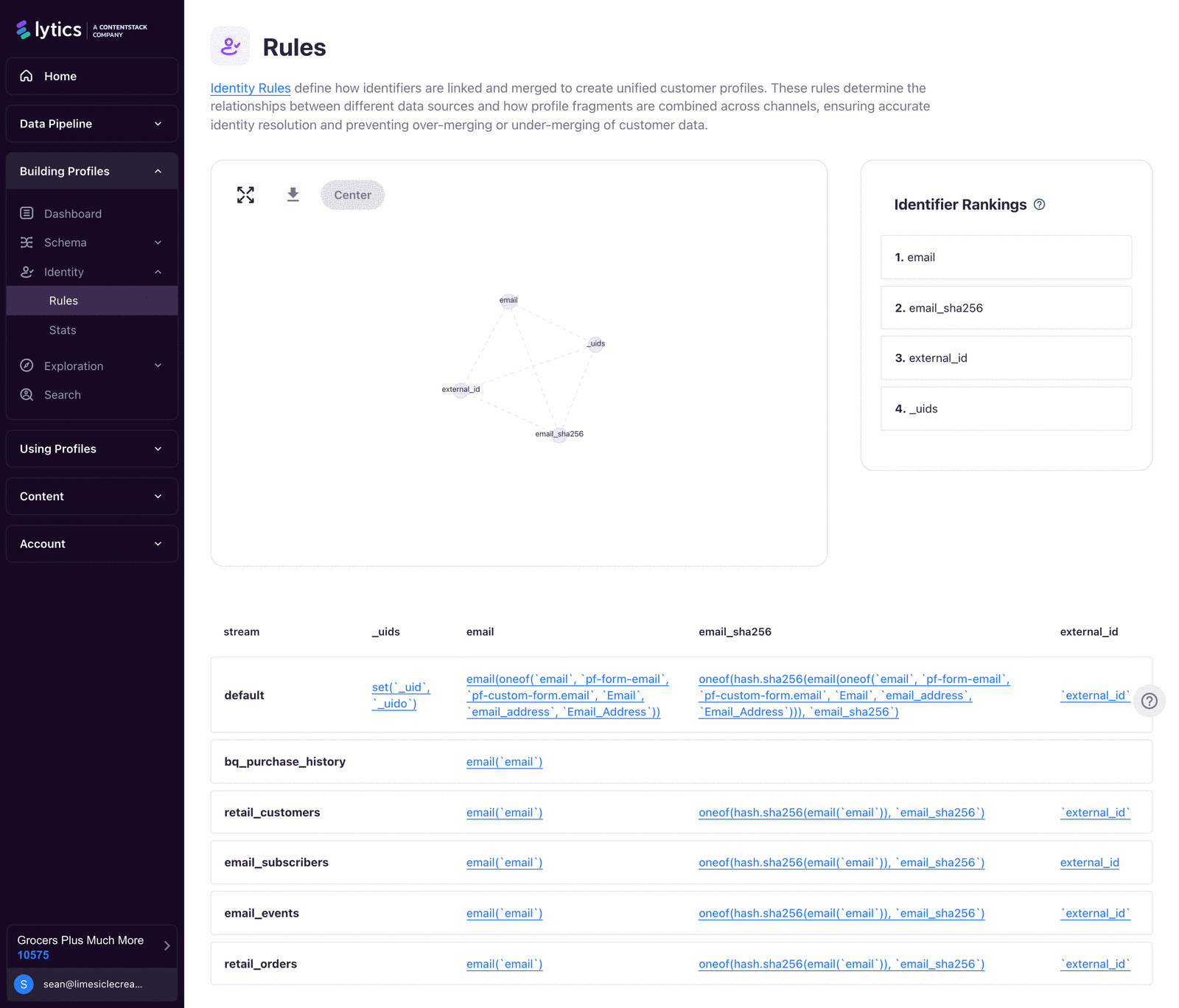
The Identity Rules view renders a visualization of how your configured identity keys relate to your data streams. Each node in the graph represents a data stream; the connections show which identity keys are shared across streams and therefore which streams can stitch profiles together.
This visualization answers a critical implementation question: "Which of my data sources can actually connect a user's web behavior to their CRM record?" If two streams share no identity keys, events from those streams can never stitch into the same profile.
Reading the Visualization
A healthy identity configuration shows:
- Multiple streams connected through shared identity keys — for example, your web stream (cookie-based) connected to your email stream (email-based) through a stitching event that captures both identifiers.
- No isolated stream nodes — an isolated stream means data from that source can never be associated with a profile from any other source.
When you see a stream with no connections, that means either: the stream intentionally produces anonymous or isolated events (acceptable for some data sources), or the stream is missing the identity key needed to stitch with other streams (a gap to fix).
Identity Rule Configuration
Identity rules are configured across two areas:
- Which fields are identity keys — set per field in Building Profiles > Schema > Fields. The
Identity Key: trueflag marks a field as a key for profile stitching. - Identity key rankings — in the event of a stitching conflict, higher-ranked keys win. View and adjust rankings in Building Profiles > Schema > Ranks. Email is typically ranked higher than cookie identifiers, because a single email represents a more reliable and stable person-identifier than a browser cookie.
Before adjusting identity key rankings or adding new identity keys to a live stream, consult with your implementation team. Changing identity rules on a live account can trigger profile merges or splits that affect every downstream audience and export.
Summary
Identity rules define which event fields Lytics uses to stitch data from different streams into a single profile. The Identity Rules visualization in Building Profiles > Identity > Rules shows how your streams are connected through shared identity keys — an isolated stream node means data from that source can never merge with profiles from other sources. Identity keys are configured per field in Building Profiles > Schema > Fields, and key rankings (which control conflict resolution during merges) are managed in Building Profiles > Schema > Ranks.
Documentation Links
Customization
Learning Objectives
By the end of this section, you will be able to:
- Create a custom user field with the correct data type and merge operator for a given use case
- Explain how
keep_daysandcapacitysettings affect how field values are stored - Select the appropriate merge operator for a given field's semantics
When You Need Custom Fields
The universal and common schema cover a wide range of standard profile attributes. But every account has data that doesn't fit into those categories: subscription tier, loyalty points balance, last product category purchased, consent flags, custom model scores from your data warehouse.
For these, you define custom fields. Custom fields live alongside universal and common fields on the profile and can be used in audience conditions, personalization rules, and exports exactly like any built-in field.
Custom field creation is available on Growth and Enterprise Lytics accounts.
Creating a Custom Field
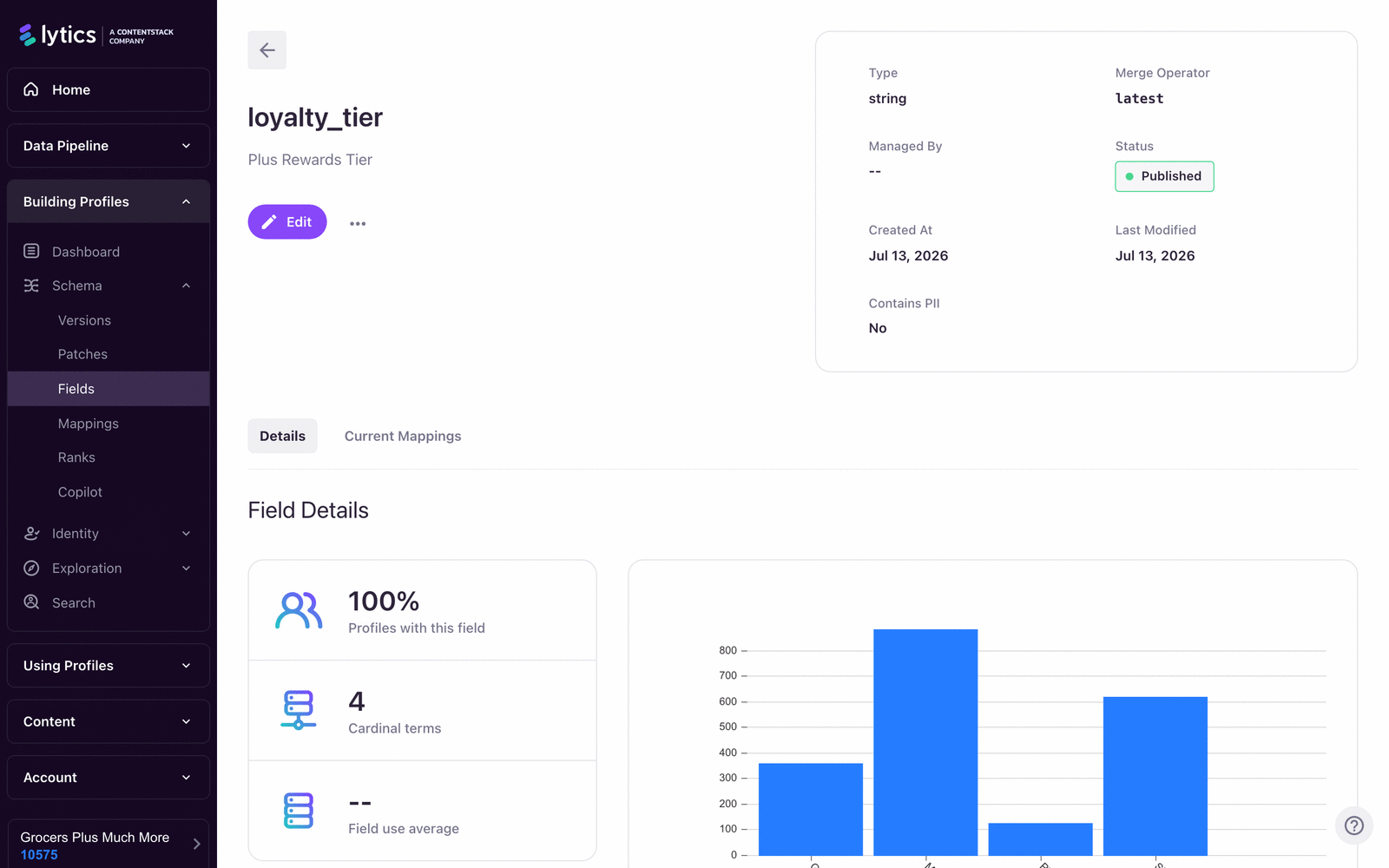
Navigate to Building Profiles > Schema > Fields. Click + Create New to open the field creation wizard.
Configure the following parameters:
| Parameter | Description |
|---|---|
| ID | The field key as it appears on the profile (e.g., subscription_tier). Alphanumeric, no spaces. |
| Short Description | Human-readable label displayed in the UI (e.g., "Subscription Tier") |
| Data Type | The type of data this field holds — see Data Types below |
| Long Description | Optional additional context shown in field summaries |
| Categories | Optional categorization: Identity, Governance, Interests, Behavior, First Party, Intelligence, Activation |
| Merge Operator | How to resolve conflicts when two sources provide different values — see Merge Operators below |
| Identity Key | Set to true if this field should be used to stitch profiles together |
| Keep Days | Days to retain values before expiration. Set to 0 to disable. |
| Capacity | Maximum values to store for set and map types. Set to 0 for unlimited. |
| PII | Flag as Personally Identifiable Information for governance and access control |
Data Types
Standard types:
| Type | Use When |
|---|---|
string |
Single text value — e.g., subscription_tier: "premium" |
integer |
Whole number — e.g., loyalty_points: 240 |
number |
Decimal number — e.g., ltv: 842.50 |
boolean |
True/false flag — e.g., email_opt_in: true |
date |
Timestamp — e.g., first_purchase_date: "2024-01-15T10:00:00Z" |
Advanced types:
| Type | Use When |
|---|---|
[]string |
Array of unique strings — e.g., all product categories purchased |
[]time |
Array of unique timestamps — e.g., session timestamps |
ts[]string |
Time-ordered array of strings — preserves insertion sequence; useful for tracking the order of visited content sections |
map[string]string |
Key-value pairs with string values — e.g., {"last_campaign": "spring_promo"} |
map[string]int |
Key-value pairs with integer values |
map[string]time |
Key-value pairs with timestamps — used for last_channel_activities |
map[string]intsum |
Key-value pairs where values accumulate via addition |
Merge Operators
The merge operator determines what happens when Lytics receives a new value for a field that already has data. Choose based on the semantics of your field:
| Operator | Behavior | Example Use Case |
|---|---|---|
| Latest | Keep the most recently timestamped value | subscription_tier — always reflect the current tier |
| Oldest | Keep the earliest-timestamped value | first_purchase_date — never overwrite the original |
| Minimum | Keep the numerically smallest value | first_order_value — preserve the smallest purchase amount |
| Maximum | Keep the numerically largest value | max_order_value — preserve the single highest purchase |
| Sum | Accumulate new values into a running total | lifetime_order_count — add each purchase event |
| Merge | Take the union of two sets | purchased_product_ids — accumulate all distinct products |
Merge operator selection is high-stakes. A
first_purchase_datefield configured with Latest instead of Oldest overwrites the original date on every subsequent purchase — permanently destroying the data. Verify your operator matches your intent before ingesting production data.
Capacity and Keep Days
For set and map fields, two additional settings control data retention:
-
capacity— Maximum number of values to store. When capacity is reached, values are evicted in FIFO order (oldest first). For example, apurchased_product_idsfield withcapacity: 100retains only the 100 most recently seen product IDs. -
keep_days— Values older than this threshold are discarded when the profile is next evaluated. A field configured withkeep_days: 30automatically expires values from more than 30 days ago.
Setting either to 0 (or omitting it) disables that constraint. For high-frequency data like URLs or session timestamps, always set a capacity limit — unbounded set fields can grow large on active profiles and degrade profile evaluation performance.
Connecting Custom Fields to Data: Mappings
A field definition alone produces no data. To populate it, you also need a mapping — an LQL expression in a stream query that routes incoming event data to the field.
For example, if your e-commerce events include a field called subscription_level and you want to map it to your custom subscription_tier field:
subscription_level AS subscription_tier SHORTDESC "Subscription Tier"
Mappings are defined in Building Profiles > Schema > Queries. Full LQL syntax and mapping configuration is covered in Schema.
Summary
Custom fields extend profiles beyond the universal and common schema to capture account-specific data like subscription tier, loyalty points, or consent flags. Creating a field requires selecting the correct data type and merge operator — the merge operator is especially critical because it controls how conflicting values are reconciled (e.g., Latest for current state, Oldest for first-touch data, Sum for running totals). For set and map types, capacity limits how many values are stored and keep_days expires old values automatically. A field definition alone produces no data; you also need an LQL mapping in a stream query to populate it.
Documentation Links
Anatomy of a Profile
Learning Objectives
By the end of this section, you will be able to:
- Navigate the Identity Explorer and describe the purpose of each of its six sections
- Use the Profile Fields filter to locate a specific field or field category
- Use the Raw Data tab to verify profile values during debugging
- Delete a profile for GDPR compliance using the Identity Explorer
The Identity Explorer
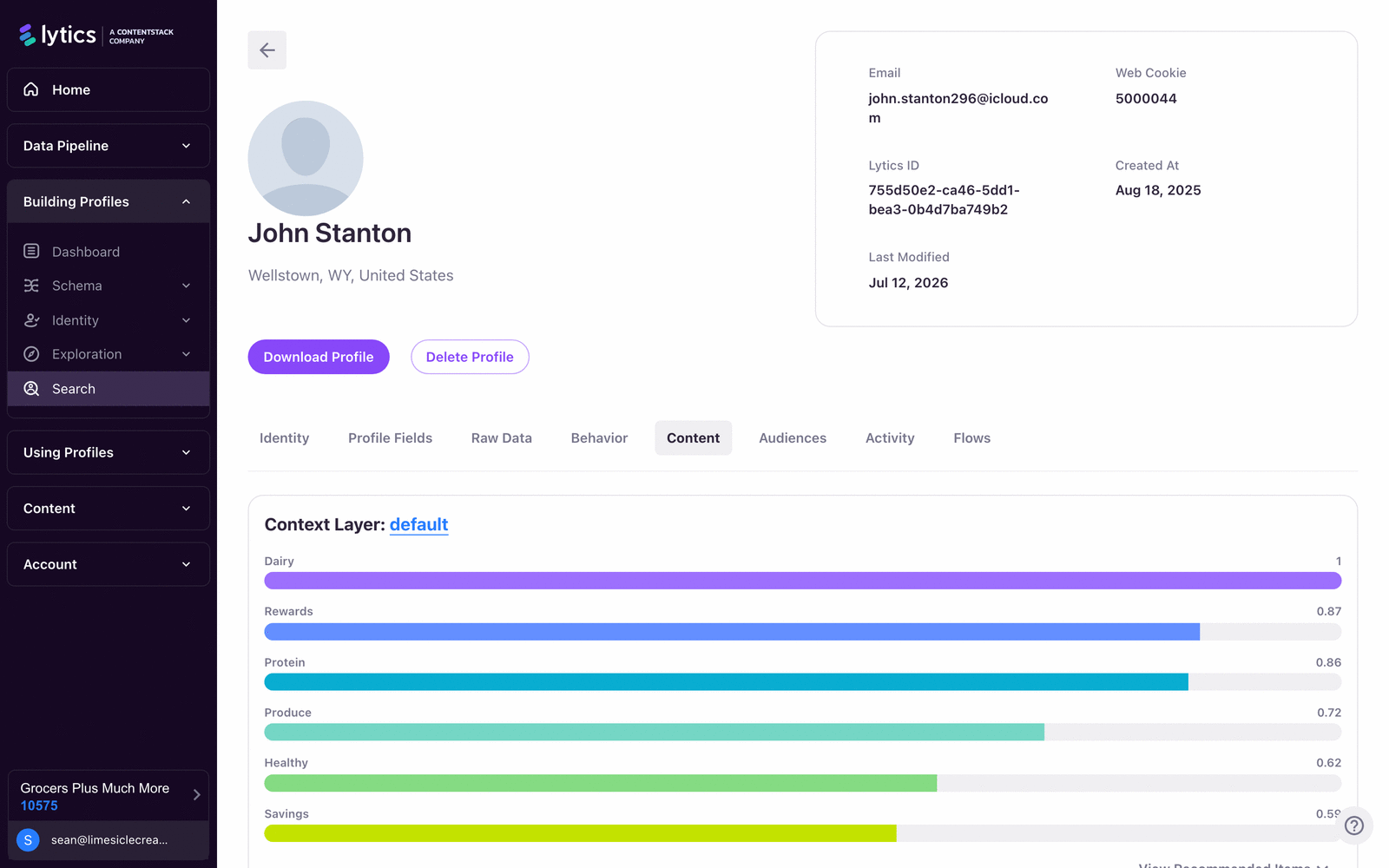
The Identity Explorer is the primary tool for examining an individual profile in depth. Where the three-tab profile view surfaces a summarized view, the Identity Explorer exposes every layer of the profile directly: identifiers, raw attributes, behavioral models, content interests, and historical activity.
Access the Identity Explorer by navigating to Building Profiles > Search, searching for a profile by identifier, and selecting it from the results.
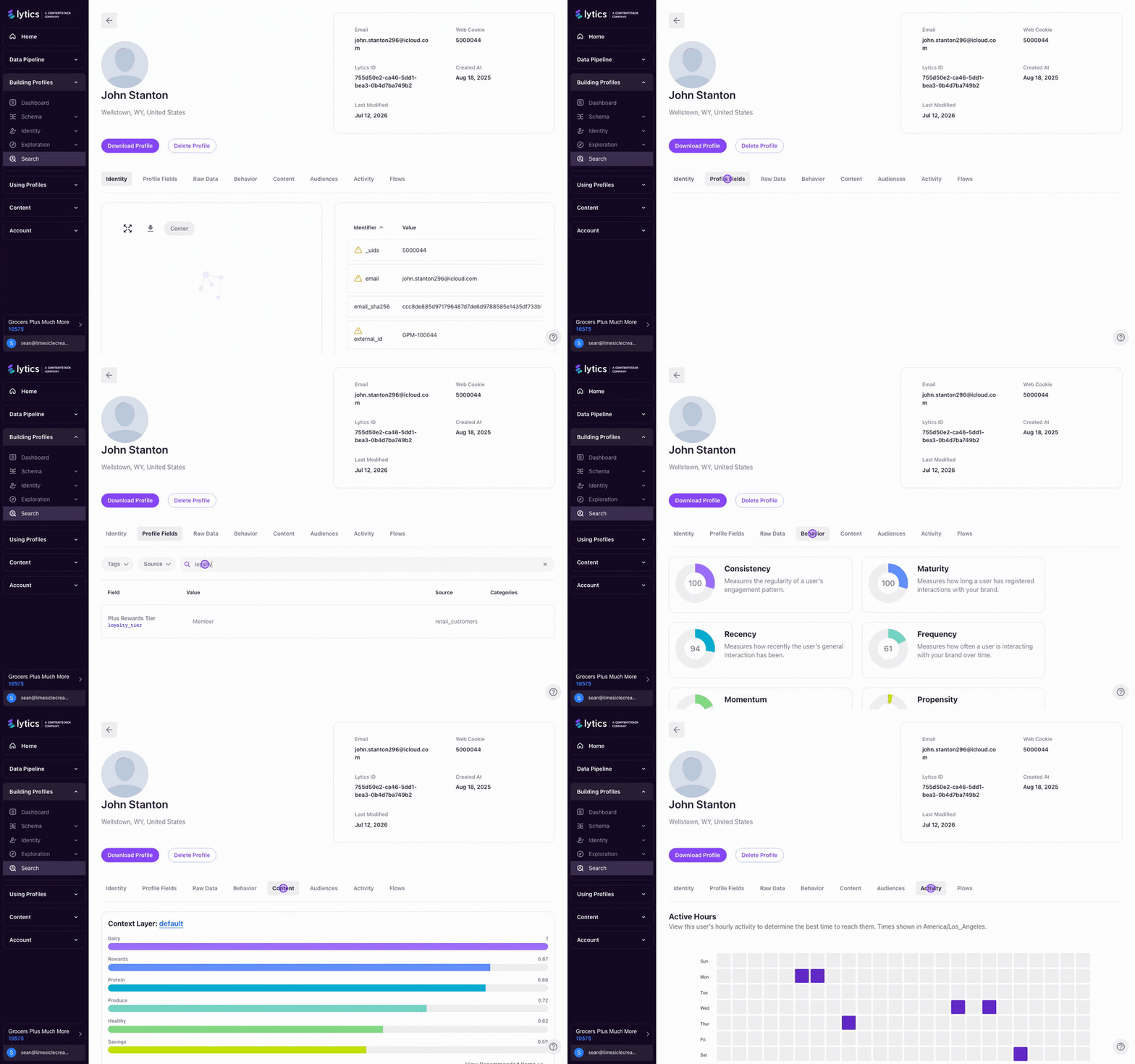
Identity Section
The Identity section shows the relationships between all unique identifiers associated with this profile.
Two views are available:
- Identifier List — A table of every key-value pair used to link this profile: identifier type (email, cookie, external ID) alongside its value.
- Identity Graph — A visual representation of connections between identifiers. Each node is an identifier; each edge is a stitching event that connected them.
Use this section when troubleshooting merges. If a profile is missing data you expect it to have, check whether the identifier that should link the missing data is present here. A missing or disconnected identifier is the most common cause of incomplete profiles.
Profile Fields Section
The Profile Fields section is an exhaustive catalog of every attribute on the profile — universal schema fields, common schema fields, and any custom fields you've defined. Each entry shows the field name, its current value, and the source stream.
Searching and Filtering
The Profile Fields view supports both free-text search and category filters:
- Free-text search — Type any field name or value fragment to narrow the list.
- Category filters — Filter by pre-defined field categories (Identity, Behavior, Intelligence, First Party, etc.) to reduce the view to a relevant subset.
Filtering by the Identity category is the fastest way to audit which identifiers are active on a profile. Filtering by Behavior surfaces only behavioral scores and related fields.
This section is the most comprehensive representation of what Lytics knows about a user. Use it to verify that mappings are working, that custom fields are populating correctly, and that expected values are present before building audiences or personalization rules that depend on them.
Raw Data Section
The Raw Data section presents the complete profile as a JSON object. Example:
{
  "_id": "4fafb5b3-b199-58f2-a68b-4b266b363dd1",
  "email": "[email protected]",
  "score_momentum": 78,
  "score_propensity": 91,
  "lytics_content": {
    "Cloud Infrastructure": 0.82,
    "DevOps": 0.65
  },
  "_segments": ["all", "high_momentum", "content_devops"],
  "subscription_tier": "premium",
  "_num_events": 127,
  "_num_streams": 3
}
This view is primarily for developers and data engineers who need to inspect the exact profile payload — for integration testing, debugging API queries, or verifying that an LQL mapping expression produces the expected output. The Raw Data section is the ground truth: everything else in the UI derives from this JSON.
Behavior Section
The Behavior section renders a graphical representation of the profile's nine behavioral scores.
The scores are displayed relative to your account's population, showing at a glance whether this user's engagement ranks high, mid, or low compared to the rest of your profiles. This is the same data as the score_* fields in the universal schema, presented as a visual summary.
Use this section when reviewing a test profile to validate that behavioral scoring is working as expected — particularly after a new stream starts sending events or after a schema change that affects the fields feeding into behavioral models.
Content Affinity Section
The Content Affinity section visualizes the profile's lytics_content map — the topic-level interest scores derived from the user's engagement with your classified web content.
Topics are displayed with their affinity values, ordered by strength. Use this section to verify that Lytics' content classification and interest modeling correctly reflect a user's actual browsing behavior before building content-based audiences or personalization rules that target by topic affinity.
Activity Section
The Activity section shows a user's activity broken down by day of week and hour of day. Use it to identify when a user is most active and optimize the timing of campaigns accordingly.
This data is the same as the event heatmap in the profile's Intelligence tab. Use it to confirm that activity from all streams is being captured and attributed to the correct profile.
Deleting a Profile
Profile Administrators can delete an individual profile from within the Identity Explorer. This supports GDPR right-to-erasure requests.
To delete a profile:
- Open the profile in the Identity Explorer.
- Locate the Delete Profile option (available to users with Administrator permissions).
- Confirm the deletion.
Deletion is permanent. The profile and all associated data are removed from Lytics. If the same identifiers appear in future events, a new profile will be created with no memory of the deleted record. Download the profile data before deletion if you need to fulfill a data portability request.
Summary
The Identity Explorer is the primary deep-inspection tool for individual profiles, exposing six sections: Identity (identifier relationships and graph), Profile Fields (all attributes with search and category filters), Raw Data (the complete profile JSON), Behavior (visual behavioral score summary), Content Affinity (topic interest scores), and Activity (engagement by day and hour). When troubleshooting, start with the Identity section to verify identifier connections, then use Profile Fields or Raw Data to confirm specific values. Profile Administrators can permanently delete a profile from the Identity Explorer to fulfill GDPR right-to-erasure requests.
Documentation Links
What You've Learned
You now understand the profile as the central object in Lytics — a continuously updated, unified record built from events across every connected data source. You've seen how to find and inspect profiles in the UI through both the three-tab profile view and the more detailed Identity Explorer. You know the two schema layers that exist on every profile (universal and common), the nine behavioral scores that Lytics computes automatically, and how identity rules connect events from different streams into a single record. You've also learned how to extend profiles with custom fields — selecting the right data type, merge operator, and retention settings — and how to populate those fields through LQL mappings.
Key Terms
📘 Profile (Entity) — The unified representation of a single individual in Lytics, constructed from all known events and attributes across every connected data source. Also referred to as an entity.
📘 Universal Schema — A set of computed, intelligent attributes applied to every profile in Lytics, regardless of data source, age, or whether the profile is anonymous or known. Includes identifiers, metafields, behavioral scores, interests, and intelligence fields.
📘 Common Schema — A set of standard profile attributes that provide consistency across integrations. Common fields normalize source-specific field names (like contact name or email) into a single canonical representation.
📘 Behavioral Score — A platform-computed 0–100 metric that quantifies engagement patterns across dimensions like recency, frequency, momentum, and intensity. Scores are relative to other profiles in your account.
📘 Content Affinity — A platform-computed score measuring each profile's interest in your content topics, based on engagement with classified web content.
📘 Identity Rule — A configuration that defines which event fields Lytics uses as identity keys to stitch events from different data streams into a single profile.
📘 Merge Operator — The rule that determines how conflicting values for a profile field are reconciled when data arrives from multiple sources (e.g., Latest keeps the most recent value, Sum accumulates a running total).
📘 Identity Explorer — The primary deep-inspection interface for individual profiles, exposing six sections: Identity, Profile Fields, Raw Data, Behavior, Content Affinity, and Activity.
