Data Flow
Everything Lytics knows about your customers starts with data flowing into the platform. Before you can build profiles, create audiences, or activate campaigns, you need to understand how raw events enter the system, how they're organized into streams, and how Lytics interprets that data into profile attributes. This module covers the full data pipeline — from the moment an event arrives through ingestion, stream organization, and schema mapping — so you can make informed decisions about how to structure your data collection and ensure the right information reaches the right profiles.
Raw Events
Learning Objectives
By the end of this section, you will be able to:
- Describe what a raw event is and identify its key/value structure
- Identify common event types and the data they carry
- Navigate to the Data Streams view and inspect raw event keys
What is an Event?
Every piece of data that enters Lytics arrives as an event — an action or activity performed by a user, such as visiting a webpage, making a purchase, or subscribing to a newsletter. Events are the atomic unit of data in the platform. An event is a flat collection of key/value pairs that describes something that happened at a specific point in time. Here is a typical web page view event sent by the JavaScript Tag:
{
  "_e": "pv",
  "_uid": "74481.3222228897",
  "_ts": "1504306728695",
  "_v": "3.0.2",
  "url": "www.example.com/pricing",
  "_ref": "www.google.com",
  "_device": "desktop",
  "_sz": "2560x1440",
  "_ul": "en-US",
  "_tz": "-7"
}
Every event contains:
- Data keys — The field names (e.g., _e, url, _uid) that describe the event.
- Data values — The corresponding values for each key.
- A timestamp — When the event occurred (_ts) and when Lytics received it.
- A stream association — Which data stream the event belongs to (e.g., default for JavaScript Tag data).
Events are independent — they do not reference each other or assume any ordering. Lytics processes each event individually and uses Fields and Mappings to translate event keys into profile attributes.
Common Event Types
Events fall into several categories based on what they describe. The following tables list the predefined fields that Lytics automatically maps from the default web stream.
Page View Events
The JavaScript Tag automatically collects page views. Each page view carries these fields:
| Field | Profile Field | Description |
|---|---|---|
_e |
— | Event type (pv = page view) |
url |
hashedurls |
Current page URL (hashed and counted) |
_ref |
refdomain |
Referral domain |
_device |
devices |
Device type (desktop, mobile, tablet) |
_sz |
— | Display size |
_ul |
— | User language |
_tz |
timezone |
Timezone offset from UTC |
Over time, page view events aggregate into visit-level profile fields:
| Profile Field | Description |
|---|---|
lastvisit_ts |
Time of last visit |
firstvisit_ts |
Time of first visit |
visitct |
Total number of visits |
pageviewct |
Total page view count |
channels |
All channels used |
domains |
Domains visited |
is_mobile |
Has accessed mobile web |
Identity Events
When you send known user data via jstag.send() or an API call, these fields map to the profile:
| Event Key | Profile Field | Description |
|---|---|---|
email |
email |
Email address |
user_id |
user_id |
Custom user identifier |
name |
name |
Full name |
first_name |
first_name |
First name |
last_name |
last_name |
Last name |
phone |
phone |
Phone number |
company |
company |
Company name |
city |
city |
City |
state |
state |
State |
country |
country |
Country |
Conversion Events
When you send an event with event: "conversion", Lytics maps these standard conversion fields:
| Profile Field | Description |
|---|---|
cvt_last_time |
Most recent conversion time |
cvt_first_time |
Oldest conversion time |
cvt_last_campaign |
Most recent campaign attributed to conversion |
cvt_campaigns |
All campaigns converted from |
cvt_value |
Most recent conversion value |
cvt_currency |
Most recent currency used |
cvt_history |
Conversion values by campaign |
jstag.send({
  event: "conversion",
  campaign_id: "spring_promo",
  variation_id: "hero_banner_a",
  currency: "USD",
  value: 49.99
});
UTM Campaign Events
Google UTM parameters are automatically captured from the URL and mapped to profile fields:
| Profile Field | Description |
|---|---|
utm_campaign |
UTM campaign referred by |
utm_source |
UTM source referred by |
utm_medium |
UTM medium referred by |
utm_content |
UTM content referred by |
utm_campaign_last |
Last UTM campaign |
utm_source_last |
Last UTM source |
utm_medium_last |
Last UTM medium |
Form Submission Events
When you send form data with a form_name key and fields prefixed with formdata_, Lytics maps:
| Profile Field | Description |
|---|---|
last_form_submitted_by_date |
Last time a web form was submitted |
form_submitted |
Web forms submitted |
form_data |
Web form data collected |
Exploring Events in the UI
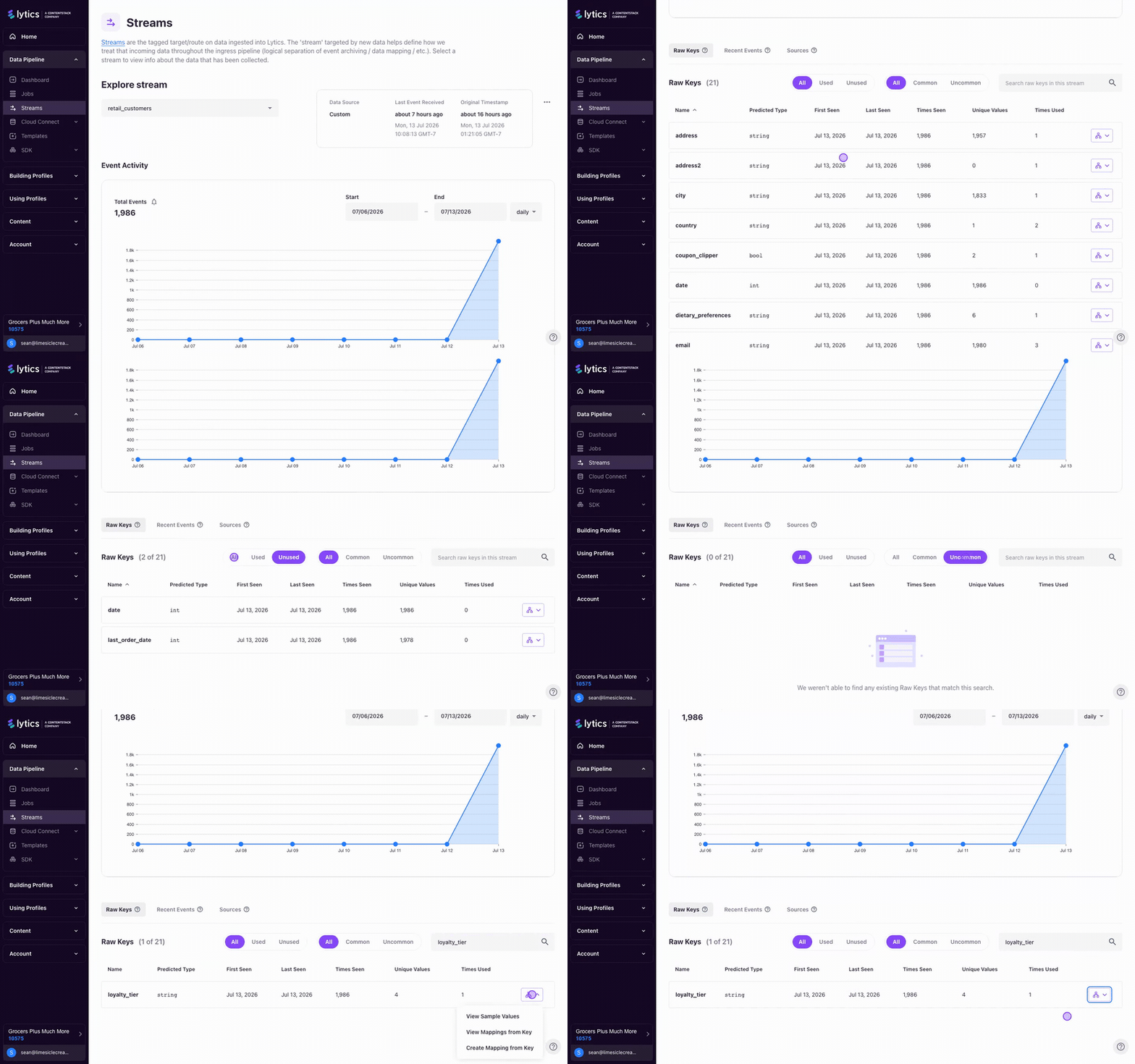
You view raw events by navigating to Conductor > Pipeline > Streams (/conductor/pipeline/streams). Select a stream from the dropdown to see its events.
The Raw Keys Table
Below the event ingress graph, the raw keys table shows every unique key observed on the stream:
| Column | Description |
|---|---|
| Name | The key name as it appears in the event |
| Predicted Type | Data type inferred by sampling values |
| First Seen | Date the key first appeared |
| Last Seen | Date the key was last observed |
| Times Seen | Number of events containing this key |
| Unique Values | Number of distinct values observed |
| Times Used | Number of user fields mapped to this key |
Click any key to see a sample of its values — useful for verifying that data matches your expectations.
The table supports four filters:
| Filter | Shows |
|---|---|
| Used | Keys mapped to at least one user field |
| Unused | Keys collected but not mapped to any field |
| Common | Keys that appear frequently relative to others |
| Uncommon | Keys that appear infrequently |
Keys comprising less than 0.1% of a stream's volume or not seen in 7 days are automatically hidden to reduce clutter. You can hide additional keys manually, but unhiding requires the API — keep a record of hidden keys.
Summary
Every piece of data in Lytics arrives as a flat key/value event with a timestamp and stream association. The platform automatically maps common event types — page views, identity, conversions, UTM parameters, and form submissions — into profile fields. The Data Streams view in Conductor lets you inspect raw keys, check mapping status, and sample actual values to verify data is arriving as expected.
Documentation Links
Ingestion Methods
Learning Objectives
By the end of this section, you will be able to:
- List all available data ingestion methods and their characteristics
- Choose the right ingestion method for a given data source and use case
- Explain the difference between real-time and batch ingestion
Lytics accepts data through multiple ingestion paths. The method you choose depends on the data source, the volume of data, and whether you need real-time or batch processing.
JavaScript Tag
The JavaScript Tag is the primary method for collecting web behavioral data. Once installed on your site, it automatically sends page views and any custom events you configure to the default stream (unless you specify a different stream).
jstag.send({
  email: "[email protected]",
  first_name: "Jane",
  last_name: "Doe"
});
Best for: Real-time web behavioral data, client-side identity resolution, page view tracking.
For installation and configuration details, see Account Configuration — SDKs.
Image Pixel
When the JavaScript Tag cannot be installed (email messages, online ads), the Image Pixel provides an alternative. It sends event data as query parameters on an image URL that fires on load:
<img src="https://c.lytics.io/c/YOUR_ACCOUNT_ID/[email protected]&utm_medium=email&utm_source=welcome" />
The pixel URL contains three components:
1. Account ID — Your Lytics account identifier
2. Stream name — The target data stream (e.g., default)
3. Query parameters — Event data as key/value pairs
Best for: Email open tracking, ad impression tracking, environments where JavaScript is unavailable.
Collection API
The Collection API (https://c.lytics.io/c/{ACCOUNT_ID}/{STREAM}) accepts real-time event data via HTTP requests. Use this for server-side event tracking when the JavaScript Tag is not applicable.
Events are sent as JSON:
[
  {"event": "purchase", "email": "[email protected]", "value": 29.99},
  {"event": "login", "email": "[email protected]"}
]
Best for: Server-side events, backend systems, real-time data from custom applications.
Bulk API and File Imports
For large volumes of offline or historical data, Lytics provides the Bulk API (https://bulk.lytics.io/collect/bulk/{STREAM}) and file-based import via SFTP and Amazon S3.
Bulk API
Upload CSV or newline-delimited JSON files directly:
curl -s -H "Authorization: $LIOKEY" \
  -H 'Content-type: application/csv' \
  --data-binary @customer_data.csv \
  "https://bulk.lytics.io/collect/bulk/crm_import"
File Imports (SFTP / S3)
Lytics can pull files from SFTP or S3 on a schedule. Key requirements:
- File naming — Use consistent naming with a time-based suffix (e.g.,
crm_data_20240115.csvorcrm_data_1705305600.csv). Lytics matches files by root filename and uses the modified timestamp to determine import order. - Compression — Files may be zip-compressed; Lytics decompresses automatically.
- Timestamps — Individual records should include a timestamp in
YYYY-MM-DDTHH:MM:Sformat. If omitted, Lytics timestamps records on ingestion. - JSON format — For bulk imports, use newline-delimited JSON (one object per line):
{"event":"register","email":"[email protected]","date":"2024-01-15"}
{"event":"purchase","email":"[email protected]","date":"2024-01-15","value":59.99}
Best for: CRM data, historical backfills, data warehouse exports, large offline datasets.
Third-Party Integrations
Lytics provides hundreds of out-of-the-box integrations for importing data from email service providers, advertising platforms, CRM systems, and more. Each integration creates its own data stream(s) — for example, an email integration typically creates both a user stream (subscriber attributes) and an activity stream (opens, clicks, bounces).
You configure integrations through Authorizations (credentials) and Jobs (import/export tasks). For details, see Account Configuration — Authorizations.
Best for: Automated ongoing data sync from supported third-party tools.
Cloud Connect
Cloud Connect lets you run SQL queries directly against your data warehouse and stream the results into Lytics as profile attributes and audiences. It integrates with:
- Google BigQuery
- Amazon Redshift
- Microsoft Azure
- Snowflake
- Databricks
Rather than moving data out of your warehouse, you write standard SQL to extract the attributes you need, and Cloud Connect streams the results into materialized user profiles. Common use cases include:
- Time-window queries — All users who did not log in last month
- Join-based queries (B2B) — All users associated with accounts missing a specific feature
- Rollup queries — All users with a premium subscription who purchased at least two products
Best for: Complex aggregations, data already in a warehouse, maintaining the warehouse as source of truth.
Don't have a warehouse? Lytics provides Lytics Warehouse (powered by Google BigQuery) to all customers as part of Conductor. Contact your account manager for access.
Mobile SDKs
The iOS, Android, and React Native SDKs collect behavioral data from mobile applications. They follow the same pattern as the JavaScript Tag: initialize with your API token, then use track, identify, and consent methods.
Best for: Native mobile app behavioral data, in-app identity resolution.
For SDK configuration details, see Account Configuration — Mobile SDKs.
Webhooks
Lytics supports inbound webhooks as a flexible option for receiving data from any system that can make HTTP requests. Lytics also supports outbound webhooks for triggered delivery of audience membership changes (enters and exits) to a destination URL.
Best for: Event-driven integrations, custom applications, systems without a dedicated Lytics integration.
Choosing the Right Method
| Method | Latency | Volume | Complexity | When to Use |
|---|---|---|---|---|
| JavaScript Tag | Real-time | Medium | Low | Web behavioral data, anonymous/known user tracking |
| Image Pixel | Real-time | Low | Low | Email, ads, no-JavaScript environments |
| Collection API | Real-time | Medium | Medium | Server-side events, backend systems |
| Bulk API / File Imports | Batch | High | Medium | CRM imports, historical backfills, offline data |
| Third-Party Integrations | Varies | Varies | Low | Supported platforms with OOTB connectors |
| Cloud Connect | Batch (scheduled) | High | Medium | Warehouse data, complex SQL aggregations |
| Mobile SDKs | Real-time | Medium | Medium | Native mobile app data |
| Webhooks | Real-time | Low | Medium | Custom integrations, event-driven systems |
Summary
Lytics offers multiple ingestion paths, each suited to different data sources and latency requirements. Real-time methods (JavaScript Tag, Image Pixel, Collection API, Mobile SDKs, Webhooks) are best for behavioral and event-driven data. Batch methods (Bulk API, File Imports, Cloud Connect) handle large offline datasets, historical backfills, and warehouse-based aggregations. Third-party integrations provide automated sync with supported platforms, each creating its own data streams. The right choice depends on the source, volume, and whether you need real-time or scheduled processing.
Documentation Links
Structuring Streams
Learning Objectives
By the end of this section, you will be able to:
- Explain what streams are and why logical separation matters
- Configure stream settings including slug, channel, and metadata
- Use stream route rules to split or filter event data
- Monitor stream health using the event ingress graph and raw keys table
What is a Stream?
Streams are how Lytics organizes incoming events into logical groupings — each stream represents a continuous flow of events from a specific source or type, providing logical separation of data within the platform. Each stream represents a distinct data source or data type. For example:
default— Web behavioral data from the JavaScript Tagcrm_users— Customer records from your CRM systememail_activity— Email engagement data (opens, clicks, bounces)email_users— Email subscriber attributespurchase_history— Transaction data from your e-commerce system
This separation matters because streams define where mappings apply. A mapping that transforms email_address into the email profile field can be scoped to a specific stream, ensuring that data from different sources is processed with the right transformation logic.
Many integrations create multiple streams automatically. For example, an email integration typically produces a user stream (subscriber attributes) and an activity stream (opens, clicks). Integration streams are prefixed to identify their source.
Creating and Configuring Streams
Streams are created automatically when data arrives on a new stream name, or you can create them explicitly via the API.
Stream Parameters
| Parameter | Type | Required | Description |
|---|---|---|---|
slug |
string | Yes | Raw identifier for the stream, used in queries and the collection API URL |
channel |
string | Yes | Data collection method: web, email, mobile, ad, sms, pos |
label |
string | No | User-friendly name displayed in the UI |
description |
string | No | Additional context about the stream's purpose |
method |
string | No | bulk or streaming — indicates the ingestion pattern |
providers |
string[] | No | Names of providers sending data to this stream |
hidden |
boolean | No | Whether to hide the stream from the stream stats view |
Stream Naming Best Practices
- Use descriptive slugs — Name streams after the source and data type (e.g.,
salesforce_contacts,shopify_orders). - Separate attributes from activity — Keep user attribute data (who someone is) on a different stream from activity data (what someone did). This distinction simplifies mapping.
- Prefix integration streams — When using data routers like Segment or Rudderstack that combine multiple sources, use prefixes to maintain logical separation (e.g.,
segment_web,segment_mobile). - Keep it consistent — Establish a naming convention (e.g.,
{source}_{type}) and apply it across all streams.
Monitoring Streams
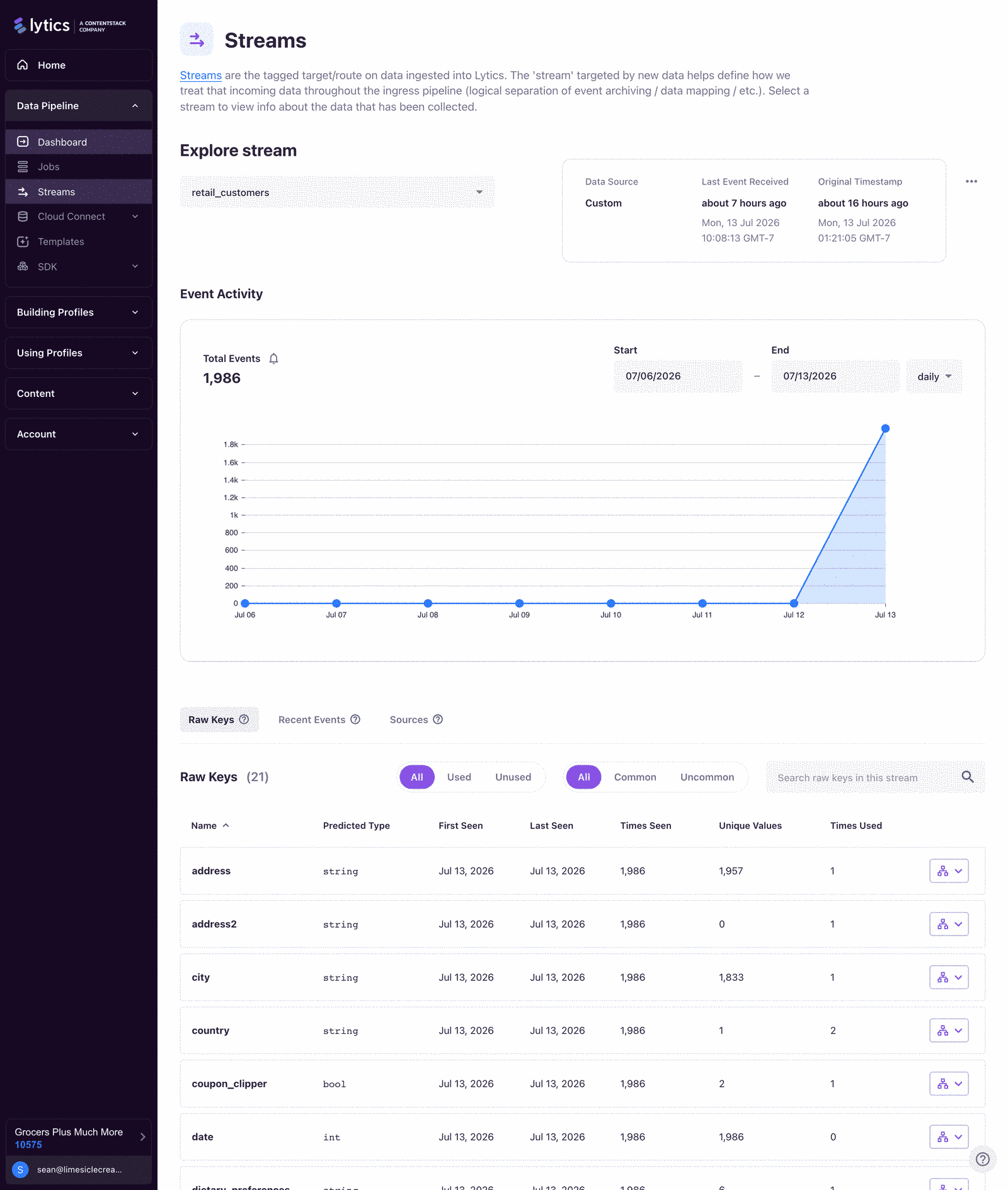
Navigate to Conductor > Pipeline > Streams to monitor your data streams.
Event Ingress Graph
The graph shows the number of events collected on a stream over a configurable time period (past day, week, month, 3 months, or year) and interval (hourly, daily, weekly, monthly). Above the graph, you see:
- Last message received — The most recent event timestamp
- Source — The data source for the stream
- Number of fields — Count of raw keys in the stream
The "last message received" timestamp strives for real-time accuracy but may lag during bulk imports.
Raw Keys Table
Below the graph, the raw keys table shows every unique key observed on the selected stream. Use it to verify that data is arriving as expected, check whether keys are mapped to user fields, and sample actual values.
Stream Route Rules
Route rules — configurations that redirect events from one stream to another based on an expression, or ignore specific subsets of events — let you reshape your stream structure without modifying the data source. Two common use cases:
- Split a monolithic stream — Route events from a single
customer_activitystream into separate streams forweb_activity,email_activity, andtransactionsbased on event content. - Filter unwanted data — Ignore all events from
localhostduring development by routing them to a divert stream.
Route Rule Properties
| Property | Type | Description |
|---|---|---|
name |
string | Descriptive name for the rule |
active |
boolean | Whether the rule is currently evaluating events |
priority |
integer | Evaluation order (higher priority first) |
expression |
string | Logic condition to evaluate (use "true" to route all events) |
input |
string | Source stream |
output |
string | Destination stream |
Example: Filtering Localhost Events
{
  "active": true,
  "expression": "contains(`_url`, \"localhost\")",
  "input": "default",
  "name": "Ignore events from localhost",
  "output": "default_divert",
  "priority": 1
}
This rule matches any event on the default stream where the URL contains "localhost" and reroutes it to default_divert, keeping your production stream clean.
Route rules are cached and take up to 10 minutes to take effect after creation or modification.
Route Rule Behavior
- Exported data — When raw activity data is exported, routed events are associated with the output stream only, not the input stream.
- Behavioral scoring — If you enable behavioral scoring on a stream, target the output stream (the stream that receives the routed data), not the input stream.
Summary
Streams provide logical separation of incoming data by source and type. Each stream has a slug, channel, and optional metadata, and serves as the scope for field mappings. Descriptive naming conventions (e.g., {source}_{type}) and separating attributes from activity data keep your stream structure manageable. Route rules let you split monolithic streams or filter unwanted events without modifying the data source. Monitor stream health through the event ingress graph and raw keys table in Conductor.
Documentation Links
Schema on Read
Learning Objectives
By the end of this section, you will be able to:
- Explain the difference between schema-on-read and schema-on-write approaches
- Describe how fields and mappings translate raw events into profile attributes
- Identify merge operators and when to use each one
- Understand schema versioning, auditing, and governance tools
How Schema on Read Works
In a traditional data system, you define a rigid schema before you can ingest data — if the data does not match the schema, it is rejected. This is schema on write.
Lytics uses a schema on read approach: you send any key/value pairs you want, and Lytics stores the raw event data regardless of whether it matches a predefined structure. You then define fields and mappings that tell Lytics how to interpret and transform that raw data into profile attributes. This interpretation happens when data is processed through the pipeline, not when it arrives.
The flow works like this:
- Raw event arrives on a data stream with arbitrary key/value pairs.
- Lytics stores the raw event in its entirety — nothing is dropped.
- Mappings evaluate — each mapping expression checks whether its conditions are met and transforms the data accordingly.
- Fields receive values — the transformed data is written to profile fields using the field's merge operator to resolve conflicts with existing data.
- The profile materializes — the unified profile reflects all mapped data from all streams.
Any key/value pair can be sent to Lytics. However, only data that has been mapped to user fields is available for use in audiences and segmentation. Unmapped data is still stored and can be mapped later without re-ingestion.
Benefits
- Start collecting immediately — You do not need to design a schema before sending data. Begin collecting events and define mappings as your understanding of the data evolves.
- Iterate without re-ingestion — Add new mappings at any time to surface previously unmapped data. The raw events are already stored.
- Handle diverse sources gracefully — Different data sources can send different key names for the same concept (e.g.,
email_addressfrom one source,EmailAddressfrom another). Mappings normalize these into a single profile field. - Evolve without migration — As business requirements change, add or modify mappings without downtime or data migration.
Trade-offs
- Unmapped data is invisible to segmentation — If you forget to map a key, the data exists in raw storage but cannot be used in audiences until mapped.
- Governance requires discipline — Without upfront schema constraints, it is possible to create redundant or conflicting mappings. Use the Schema Audit to monitor field health.
- Mappings apply forward only — When you publish a new mapping, it applies to events processed from that point forward, not retroactively to historical data already on profiles.
It is important to have fields and mappings in place before data is ingested on a stream. While data will still be stored, the initial processing pass will not apply mappings that do not yet exist.
Fields and Mappings
A field is a named attribute on the user profile with a defined data type, merge operator, and optional retention policy — fields are the building blocks of the profile schema. A mapping is an expression that transforms raw event data into a profile field value, scoped to a specific stream and optionally gated by conditions.
Creating a Field
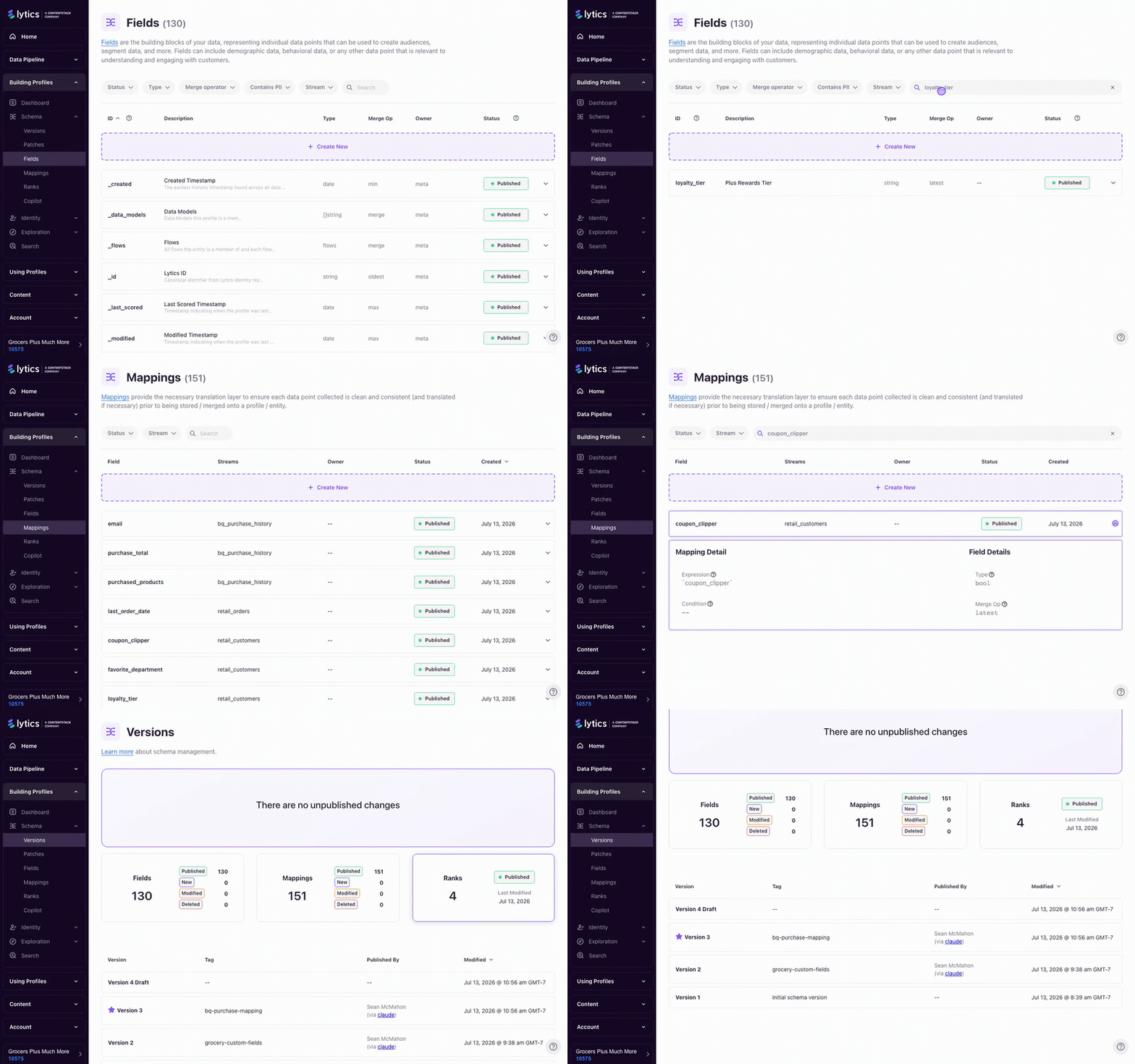
Navigate to Schema > Fields and click + Create New. Each field has these properties:
| Property | Description |
|---|---|
| ID | Alphanumeric key defining how the field is stored on the profile |
| Short Description | User-friendly label shown throughout the UI |
| Data Type | The type of data stored (see table below) |
| Merge Operator | How conflicting values are resolved (see Merge Operators) |
| Identity Key | Whether this field links events from different sources (true/false) |
| Keep Days | Number of days to retain values (0 = unlimited) |
| Capacity | Maximum number of values in set/map fields (0 = unlimited) |
| PII Key | Whether the field contains personally identifiable information |
| Categories | Optional classification: Identity, Governance, Interests, Behavior, First Party, Intelligence, Activation |
Data Types
Standard types:
| Type | Description |
|---|---|
string |
Sequence of characters, no length limitation |
integer |
Whole numbers (positive or negative), 64-bit |
number |
Decimal numbers (positive or negative), 64-bit |
boolean |
True or false |
date |
Datetime value |
Advanced types:
| Type | Description |
|---|---|
[]string |
Array of unique string values |
[]time |
Array of unique datetime values |
ts[]string |
Time-ordered unique array of strings |
map[string]datatype |
Key/value pairs where the key is a unique string and the value is one of: string, int, number, bool, time |
Creating a Mapping
Navigate to Schema > Mappings and click + Create New. Each mapping requires:
| Property | Required | Description |
|---|---|---|
| Stream | Yes | The stream this mapping applies to |
| Expression | Yes | The transformation rule to apply |
| Condition | No | A logical expression that must be true for the mapping to execute |
Mapping Expression Examples
Given this incoming event:
{
  "email_address": "[email protected]",
  "_uid": "123e4567-e89b-12d3-a456-426614174000",
  "utm_campaign": "exciting_campaign",
  "url": "www.lytics.com/get-started",
  "event_type": "page-view"
}
You could define these mappings:
| Expression | What It Does |
|---|---|
email_address |
Takes the value as-is (no transformation) |
email(email_address) |
Validates that the email is syntactically correct before storing |
email(oneof(email_address, EmailAddress)) |
Coalesces two possible key names and validates the result |
count(event_type) IF event_type == "page-view" |
Increments a counter only when the event type is page-view |
Lytics provides a comprehensive library of mapping functions including string manipulation, hashing, date/time parsing, URL extraction, aggregation (count, sum, min, max, set), and conditional logic. For the full function reference, see Schema.
Merge Operators
When multiple events map data to the same profile field, the merge operator determines how the values are combined:
| Operator | Behavior | Use When |
|---|---|---|
| Latest | Keep the value with the most recent timestamp | You want the current state (e.g., current email, current city) |
| Oldest | Keep the value with the oldest timestamp | You want the original value (e.g., signup date, first purchase) |
| Minimum | Keep the smallest value | You want the floor (e.g., lowest price seen) |
| Maximum | Keep the largest value | You want the ceiling (e.g., highest order value) |
| Sum | Add numeric values together | You want a running total (e.g., lifetime spend) |
| Merge | Take the union of two sets | You want all values (e.g., all products purchased, all pages viewed) |
Choosing the right merge operator is critical for data accuracy. A field tracking first_purchase_date should use Oldest so that earlier values are never overwritten. A field tracking total_spend should use Sum so that each new purchase adds to the running total.
Schema Governance
Lytics provides several tools to maintain schema quality as your data sources grow.
Schema Versions
Changes to fields and mappings are not applied immediately. Instead, they accumulate as an unpublished draft. You review and publish changes from Schema > Versions:
- Navigate to Schema > Versions to review unpublished changes.
- Click Publish Changes and review the full list of field, mapping, and ranking modifications.
- Provide a description for the version.
- Publish.
To undo a change, you can Discard Changes (resets to the last published version) or Revert to Schema (rolls back to a specific previous version by creating a new unpublished draft).
Mappings only apply to data processed after the version is published. They do not retroactively reprocess historical events.
Schema Audit
Navigate to Data > Schema Audit to review the health of your schema. The audit provides:
- Field coverage — What percentage of defined fields are actively receiving data
- Field utilization — What percentage of fields are used in audience definitions
- Multi-source fields — What percentage of fields merge data from multiple streams
- Data type distribution — Breakdown of field types (note:
maptypes are more expensive and should be used deliberately)
Each field row shows its ID, name, data type, source streams, population count (users with the field), approximate cardinality, and audience usage count.
Schema Copilot
Schema Copilot uses AI to analyze new data sources and suggest fields and mappings. Provide a JSON or CSV sample, select the target stream, and Copilot generates a suggested schema that you can review and edit before publishing.
This is particularly useful when onboarding a new data source — rather than manually inspecting every key and writing mappings, Copilot provides an informed starting point.
Summary
Lytics uses a schema-on-read approach: raw events are stored in full regardless of structure, and fields and mappings define how that data is interpreted into profile attributes. Fields have a data type, merge operator (Latest, Oldest, Sum, etc.), and optional retention policy. Mappings are scoped to a stream and can include transformation functions and conditions. Schema changes accumulate as unpublished drafts and must be published to take effect — and they apply forward only, not retroactively. The Schema Audit and Schema Copilot help maintain quality as your data sources grow.
Documentation Links
What You've Learned
You now understand the full path data takes through Lytics — from raw events arriving via multiple ingestion methods, through stream organization and schema-on-read interpretation, to materialized profile attributes. You've seen how events are structured as flat key/value pairs, how the platform offers real-time and batch ingestion options for different data sources, how streams provide logical separation that scopes your mappings, and how fields and merge operators control exactly how incoming data shapes unified profiles. With this foundation, you're ready to explore the profile itself and see what all this data produces.
Key Terms
📘 Event — An action or activity performed by a user (e.g., page view, purchase, form submission). Events are the atomic unit of data in Lytics, structured as flat key/value pairs with a timestamp and stream association.
📘 Data Stream — A continuous flow of events from a specific source or type, providing logical separation of data within Lytics. Streams scope where mappings apply.
📘 Field — A named attribute on the user profile with a defined data type, merge operator, and optional retention policy. Fields are the building blocks of the profile schema.
📘 Mapping — An expression that transforms raw event data into a profile field value. Mappings are scoped to a specific stream and can include conditions and transformation functions.
📘 Merge Operator — The rule that determines how conflicting values are combined when multiple events map to the same profile field (e.g., Latest, Oldest, Sum, Merge).
📘 Schema on Read — Lytics' approach to data interpretation: raw events are stored in full regardless of structure, and fields/mappings define how that data is translated into profile attributes at processing time.
📘 Route Rule — A configuration that redirects events from one stream to another based on an expression, or ignores specific subsets of events.
📘 Cloud Connect — A feature that lets you run SQL queries directly against your data warehouse and stream the results into Lytics as profile attributes and audiences.
📘 Schema Copilot — An AI tool that analyzes new data sources and suggests fields and mappings, providing an informed starting point for schema configuration.
Next step: Proceed to Profile to learn the structure of unified profiles and what all this collected data produces.
