Jobs and Authorizations
Walk through setting up jobs and authorizations to connect Lytics to your marketing tools.
Introduction
Integrations Overview
Note: On January 10, 2023, we upgraded our UI with a new, refreshed interface. All of the underlying functionality is the same, but you will notice that things look a little different from this Academy guide. The most notable change is that the navigation menu has moved from the top of the app to the left side. We appreciate your patience as we work on updating our Academy.
In this training guide, we will demonstrate how to set up jobs and authorizations step-by-step. Jobs are fundamental to moving your first-party data between Lytics and your marketing tools.
To start, watch the short overview video "Jobs and Authorizations" (3 mins).
Objectives and Key Terms
Managing your data connections in Lytics
The Data tab in Lytics is central to setting up and managing the ongoing flow of data between Lytics and your other marketing tools. What used to be labeled as the "Integrations" tab now lives within 2 new sections under the Data tab: Jobs and Authorizations.

By the end of this training, you will have learned - How to create a job - How to create an authorization - What's new & improved?
Key Terms
- Jobs: responsible for moving your first-party data between Lytics and your marketing tools.
- 3 main types: imports, exports, and enrichments (more on this in the next section).
- Formerly referred to as "works" and "workflows."
- Authorizations: responsible for connecting your provider tools to Lytics.
- Provider: third-party tool that you are connecting with Lytics.
- Sources: send data from a provider to Lytics.
- Destinations: send data from Lytics to a provider.
Match the term to its definition
| Provider | How you move data between Lytics and other tools |
| Authorizations | How you allow other tools to connect to Lytics |
| Jobs | Third-party tool that you are connecting with Lytics |
Creating Jobs
Job Types
Three Main Job Types
A provider tool may support one or more job types within Lytics. There are a variety of ways you can send data to and from Lytics, but they fall into 3 main categories:
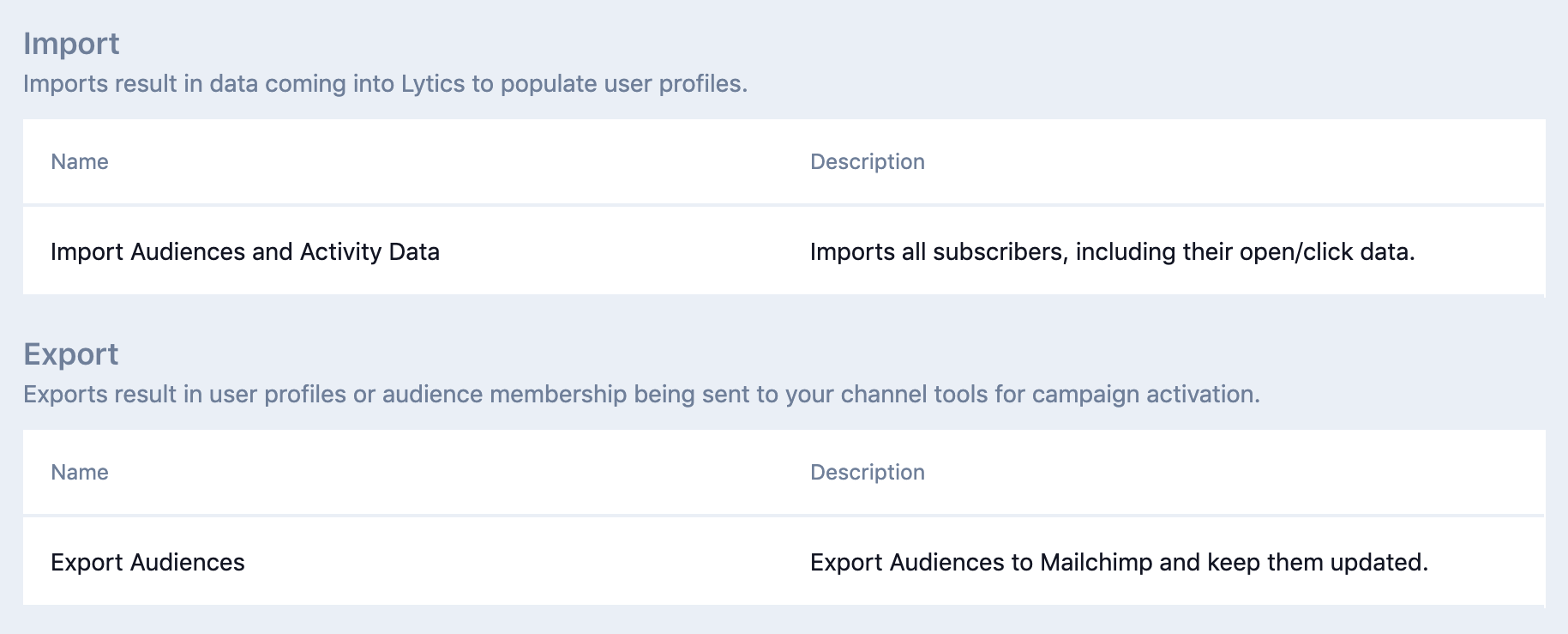
- Import jobs: Ingest data from a source tool into Lytics.
- Result in data coming into Lytics to populate user profiles.
- Export jobs: Send data from Lytics to a destination tool.
- Result in user profiles or audience membership being sent to your channel tools for campaign activation.
- Enrichment jobs: Use a third-party service to enhance and enrich existing user profiles within Lytics.
- Take existing profile data and expand on it by pulling in more information.
Many providers, such as Mailchimp, offer an import and export audiences option.
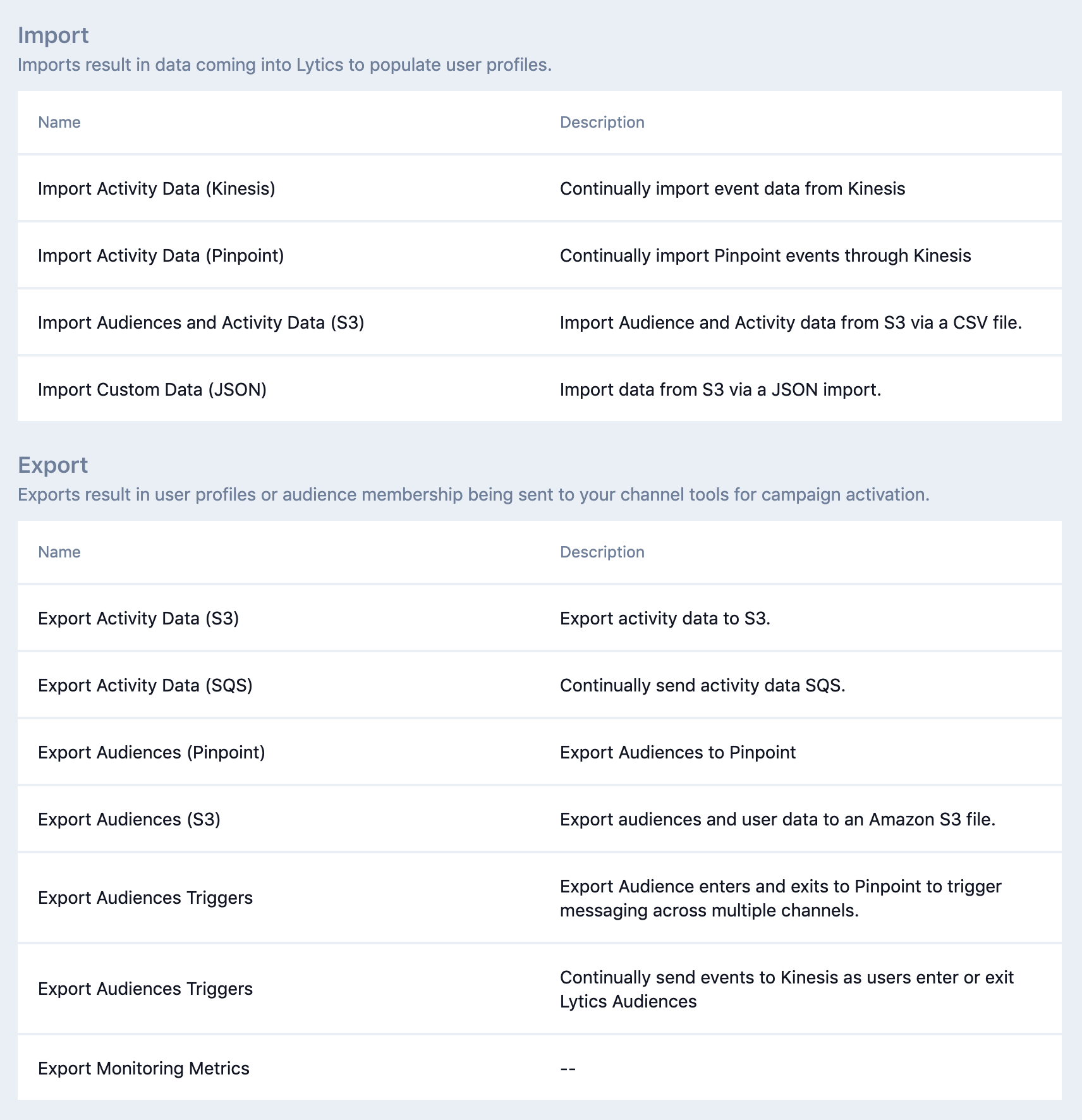
Amazon Web Services is an example of a provider with many job types including several different tools under the AWS umbrella - Kinesis, Pinpoint, S3, etc.
Note: For a few providers such as Google Tag Manager, you will see Other listed as the job type.
For more info on the connection types and techniques available, see our Integrated Marketing Tools documentation.
True or false: All integrations support import and export jobs.
A. True
B. False
Answer: False - Many providers support import and export jobs but not all. You can see which job types are supported in app and on Learn Lytics.
Jobs Dashboard
The Jobs Dashboard gives an overview of your existing jobs and their status, and it's where you'll go to create a new job.
How to create a job
Check out the "Jobs Dashboard - Create A Job" video (3.5 mins) for a quick walk through of creating a job and an authorization together in a single flow.
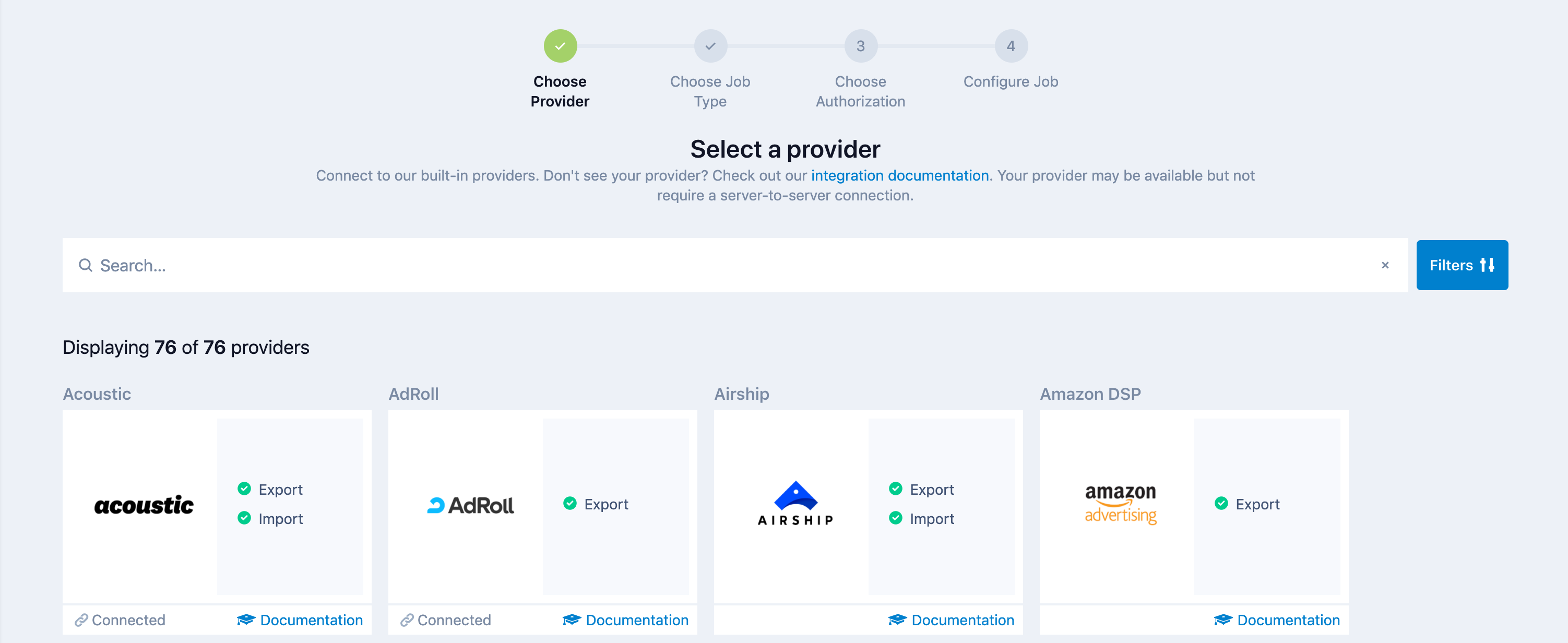
Regardless of the job type, you'll follow these steps:
- Choose the provider.
- Choose the job type.
- Choose the authorization.
- Configure your job.
 For more info, see our Jobs Dashboard documentation.
Which of the following is NOT a step in the job creation flow?
A. Choose Provider
B. Choose Authorization
C. Create Custom Job Type
D. Configure Job
Answer: C
Job Summary
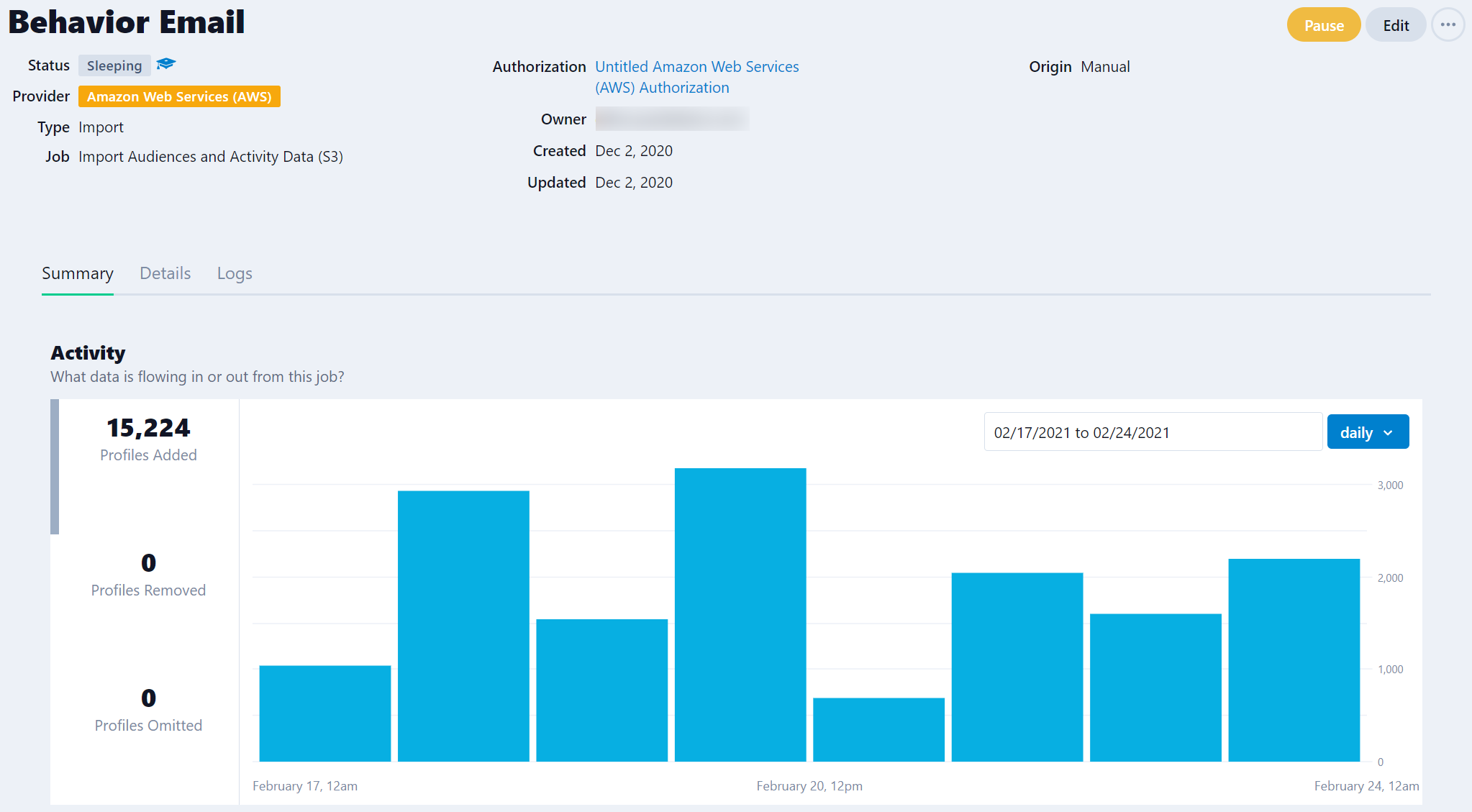
When you click on a job from the dashboard, you will be taken to the job's summary page. Here, you'll find important metadata about the job, such as the status, owner, creation date, and associated authorization, and the configuration details.
Edit the name and description of a job
While creating a new job or editing an existing one, you can add a custom label and description. This is particularly important when you have numerous jobs of the same type running.
Job Activity Metrics
See how many user profiles were added, removed, or omitted on an hourly, daily, or weekly basis.
Job Status and Logs
Read up on job statuses and checking the logs in our Job Summary documentation.
For an existing job, which of the following can you edit? Select all that apply.
A. Name (label)
B. Job Type
C. Description
D. Provider
Answer: A, C - If you want to change the provider or job type, you should simply start a new job.
The Activity chart on the Job Summary displays which of the following metrics?
A. Potential reach, total reach, converted
B. Profiles added, profiles removed, and profiles omitted
C. Data fields, data source, data streams
D. Audience size, conversions, conversion rate
Answer: BCreating Authorizations
Authorizations Dashboard
The Authorizations Dashboard gives an at-a-glance view of your existing authorizations and their usage.
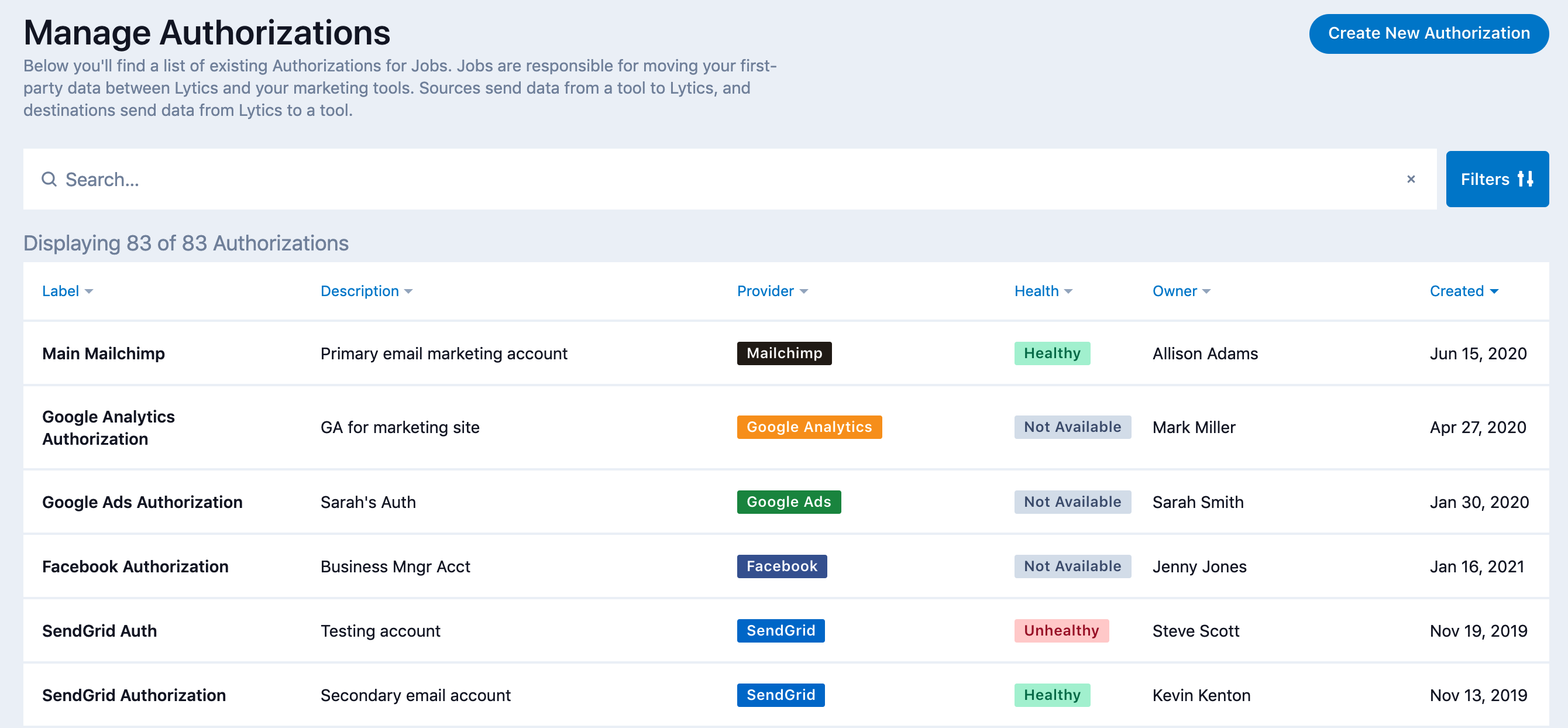
Authorization health indicator
Lytics checks the status of your authorizations automatically on a daily basis. For an authorization to marked as "healthy," it must be valid and active. Learn More
How to create an authorization
There are two ways you can create an authorization:
Option 1
From the Authorizations Dashboard, click Create New Authorization and complete the steps:
- Choose the provider.
- Select the authorization method.
- Complete the configuration.
Option 2
As shown in the video in the previous section, you can also create a new authorization inline of the job creation flow. This allows you to not interrupt your process of starting a job in order to make a new authorization first.
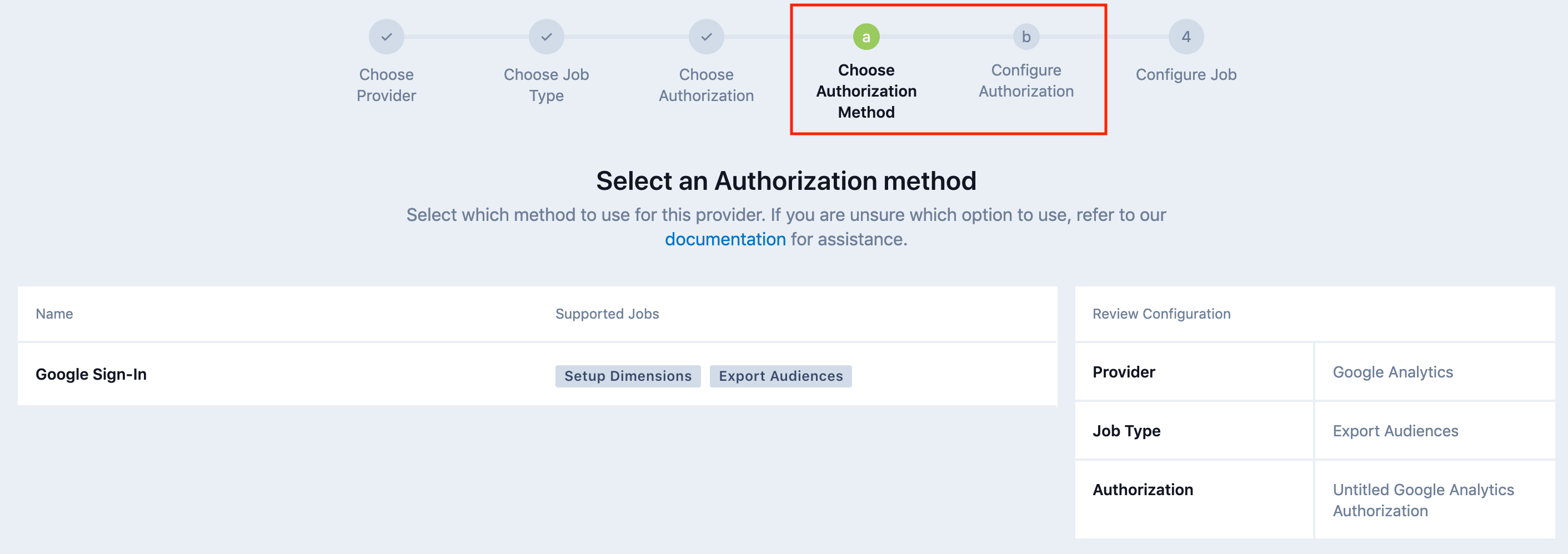
If you go this route, you'll see two steps added to the job flow that you'll complete before configuring your job.
Authorization Methods
Note that some integration providers only have one authorization method, but others offer multiple methods such as API keys, OAuth, etc. Certain methods enable different job types, so be sure to select the option that supports your use case.
For more info, see our Authorizations Dashboard documentation.
A certain authorization method may be required to enable one job type vs. another.
A. True
B. False
Answer: True - Certain authorization methods enable different jobs such as real-time audience exports vs. bulk audience exports. If you are unsure which method to use, you can find more information in the integration documentation for your provider.
Authorization Summary
When you click on an authorization from the dashboard, you will be taken to its summary page. Similar to the job summary, you'll find important metadata about the authorization such as the status, owner, creation date, etc.
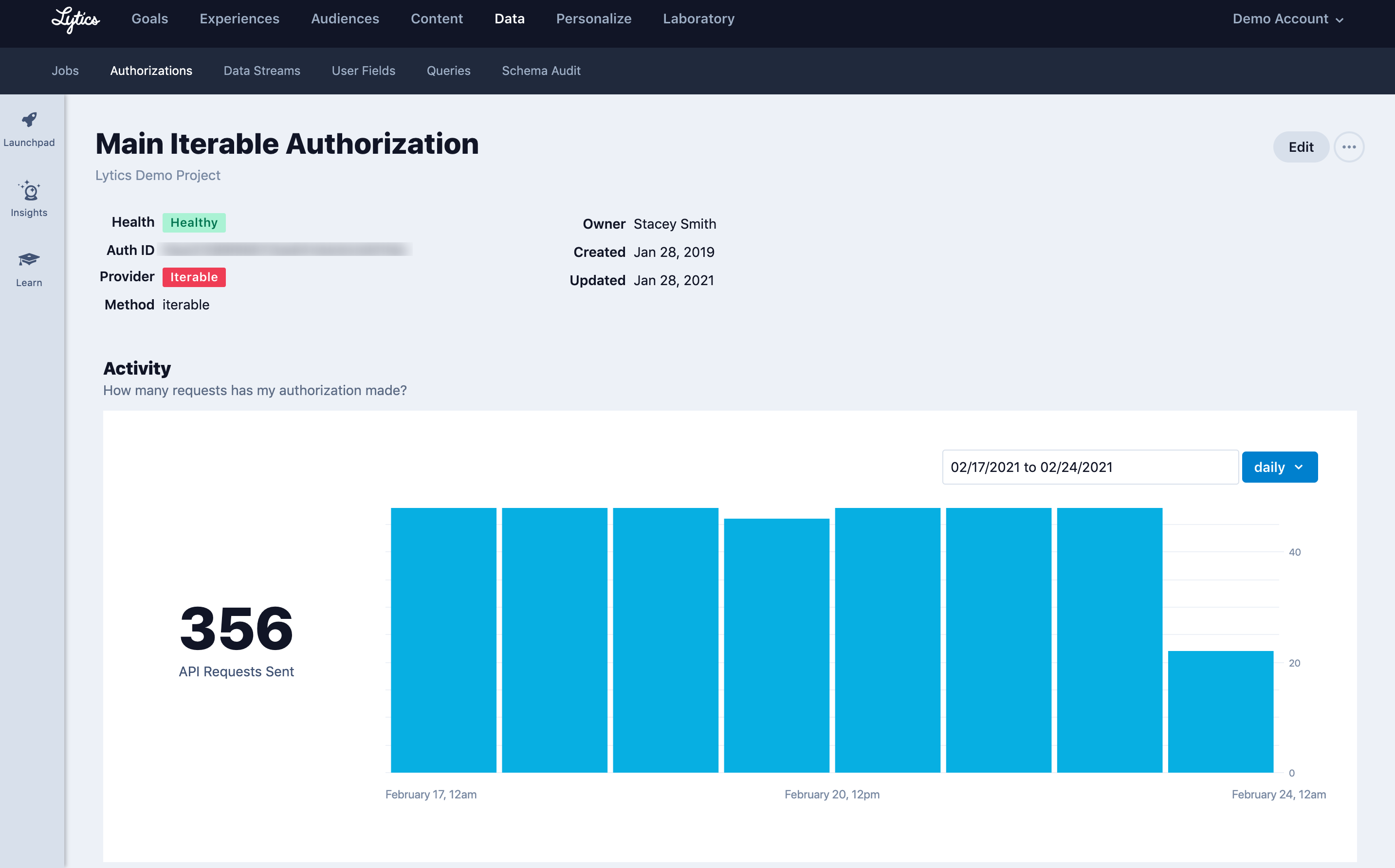
Authorization activity metrics
See how many API requests have been sent on an hourly, daily, or weekly basis.
Edit the names and descriptions of authorizations
Add a custom label and description while creating an authorization or editing an existing one.
Change the authorization associated with a job
You can replace or update an authorization. There are many reasons why an authorization may need to be changed such as incorrect credentials, employee associated with an authorization leaves, etc.
NOTE: You must select an authorization that supports the existing job configuration (e.g. authorizing for the specific account the job is targeting).
Delete authorizations directly via the UI
Keep your account current by deleting any invalid or unused authorizations.
NOTE: You can only delete an authorization if there are no active jobs using it.
For more info, see our Authorization Summary documentation.
What metric is shown in the authorization activity chart? API RequestsKnowledge Check
Users can change the authorization associated with an existing job.
A. True
B. False
Answer: True - As long as the authorization method supports the job type selected, you can change the authorization or add a new one.
You can delete an authorization that is associated with a job when the job status is _____? Select all that apply.
A. Running
B. Sleeping
C. Failed
D. Paused
E. Completed
Answer: C, E
Wrap-Up
Summary and More Resource
Nice job, learning about jobs!
For a quick summary of what we covered in this guide:
- Why we made this series of improvements to reduce friction points.
- How to create a job in the new, streamlined flow.
- How to create an authorization - on its own or as part of creating a job.
More Resources
The docs referenced throughout this guide:
For a recap of the series of improvements Lytics made to managing integrations:
