# Implementing App Locations: JSON RTE
### About this export
| Field | Value |
| --- | --- |
| **content_type** | lesson |
| **platform** | contentstack-academy |
| **source_url** | https://www.contentstack.com/academy/courses/marketplace-apps/implementing-app-locations-json-rte |
| **course_slug** | marketplace-apps |
| **lesson_slug** | implementing-app-locations-json-rte |
| **markdown_file_url** | /academy/md/courses/marketplace-apps/implementing-app-locations-json-rte.md |
| **generated_at** | 2026-04-28T06:55:38.178Z |
> Part of **[Building Marketplace Apps](https://www.contentstack.com/academy/courses/marketplace-apps)** on Contentstack Academy. **Academy MD v3** — structured for retrieval; no quiz or assessment keys.
#### Lesson text
The JSON Rich Text Editor Plugins lets you add/create custom plugins to extend the functionality of your JSON Rich Text Editor as per your needs. You can use third-party applications to interact with your JSON Rich Text Editor content.
## **Use Case**
With prebuilt plugins such as Highlight, Info Panel, and Word Count, you can enhance the JSON Rich Text Editor (JSON RTE) field. Instead of using separate custom fields to interact with the content within the JSON RTE, create and add plugins to your JSON RTE for real-time adaptiveness.
## **Exercise 8**
For this exercise you will need to navigate to a different location in the project directory to work on the JSON RTE plugin code. Once you complete the exercise a compiled file with the plugin will be placed in the _public_ folder of the main project and will be served as defined in the JSON RTE location path definition.
In this exercise you will create a plugin that will capitalize the text in the JSON RTE, similar to the logic implemented for the Field Modifier location.
* First navigate into the **\[project-root\]/rte/src** folder, that's where the core of the work will be done for this exercise.
* Next, in that folder, create a new file under the _rte/src_ folder, and name it **academy.tsx**
* Copy the following code into the file contents:
import { cloneDeep } from "lodash";
export const onClickHandler = (rte: any) => {
const getNode = rte?.getNode(\[0\]);
let rteData: any = \[\];
const findRteObj = (obj: any) => {
for (let key in obj) {
if (typeof obj\[key\] === "object" && obj\[key\] !== null) {
if (obj\[key\]?.type === "p") {
rteData.push(obj\[key\]);
} else {
findRteObj(obj\[key\]);
}
}
}
};
findRteObj(getNode);
const path = rteData?.map((path: any) => {
return rte?.getPath(path);
});
const rteDataCopy = cloneDeep(rteData);
rteDataCopy.forEach((element: any) => {
element?.children?.forEach((j: any) => {
j.text = j?.text?.toUpperCase();
});
});
for (let i = 0; i < rteDataCopy?.length; i++) {
rte?.deleteNode({ at: path\[i\] });
rte.insertNode(rteDataCopy\[i\], {
at: path\[i\],
});
}
};
* Save your **academy.tsx** file and make sure that your application is still running with no errors.
* **Tip**: in case you might have experienced any issues or your application is erroring, the final code is provided in the **rte/src/solution-1.txt** file, which contents you can copy and paste into the **rte/src/academy.tsx** file.
* Next navigate to the _rte/src/plugin.tsx_ and add the following two import statements:
* import { Icon } from "@contentstack/venus-components";
import React from "react";
import { onClickHandler } from "./academy";
* On that same file, replace the **return { }** statement with the following code snippet:
if (!RTE) return;
const Academy = RTE("academy", () => {
return {
title: "Capitalize",
icon: <Icon icon="Settings" />,
};
});
//@ts-ignore
Academy.on("exec", async (rte: RTE) => {
try {
onClickHandler(rte);
} catch (e) {
console.error("Error", e);
}
});
return {
Academy,
};
* Save your **plugin.tsx** file and make sure that your application is still running with no errors.
* **Tip**: in case you might have experienced any issues or your application is erroring, the final code is provided in the **rte/src/solution-2.txt** file, which contents you can copy and paste into the **rte/src/plugin.tsx** file.
* Now, for the plugin to be served you will need to build the code and deploy it to the _public_ folder of the main application. If you still have the boilerplate app running, stop it. You can do so, by pressing **CNTRL+C** in the terminal where the app is running.
* Once the application has stopped you will need to execute the following commands from your terminal:
Navigate to the root location of the rte plugin code: _\[project-root\]/rte/src:_
cd \[project-root\]/rte/src
First, install the dependencies by running the following command:
npm install
Second, build your plugin by running the following command:
npm run build-academy
Navigate back to the root of the main boilerplate app project **\[project-root\]/src**
cd \[project-root\]/src
Start the boilerplate app by running:
npm start
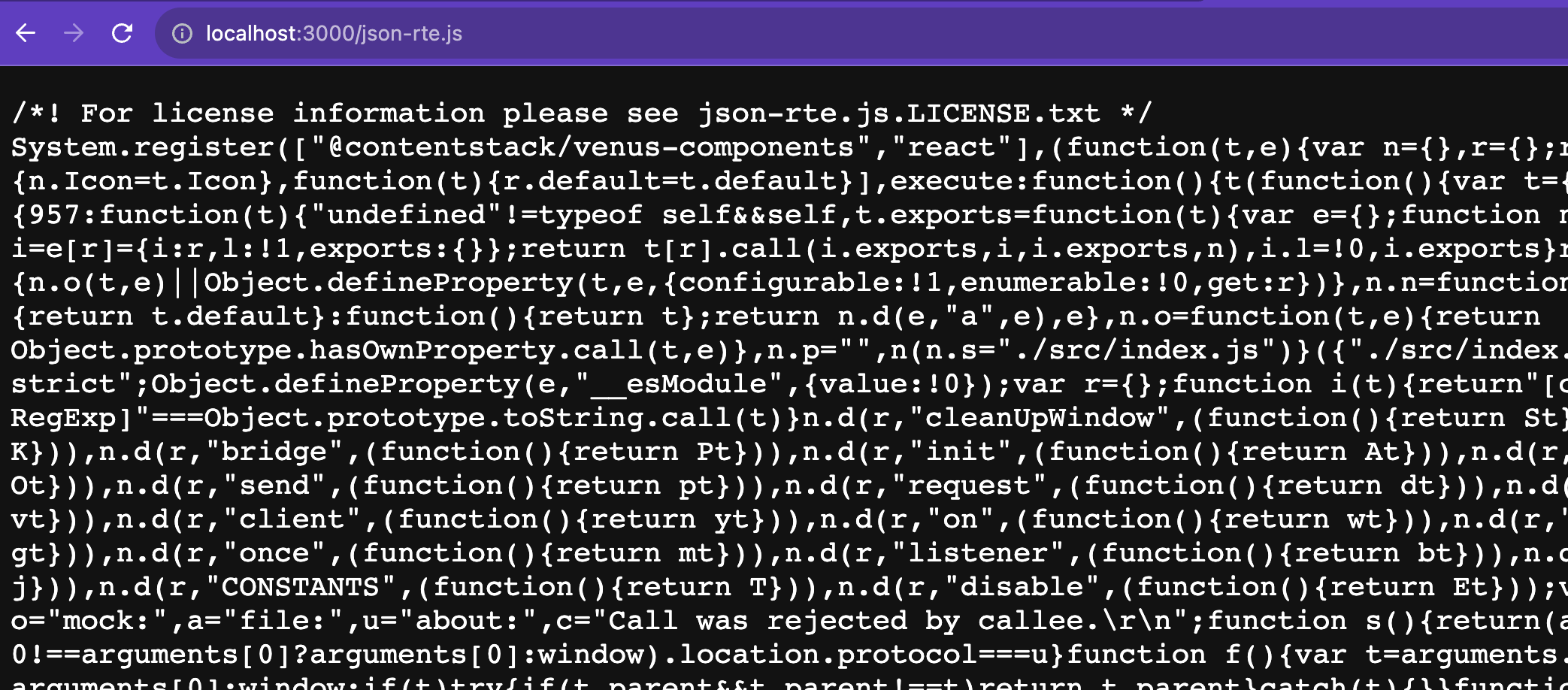
You should see something like this if you browse **http://localhost:3000/json-rte.js**
Next, we will need to add a JSON RTE field to our Sample Content Type and activate the plugin so we can see it in action. To do that take the following steps:
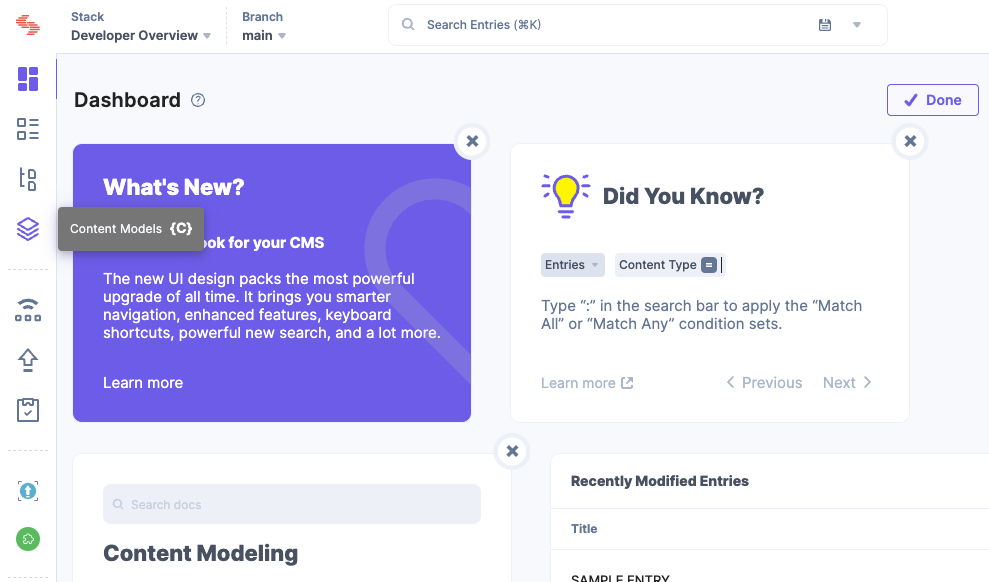
* Using the left navigation bar, click on the Content Models section
* 
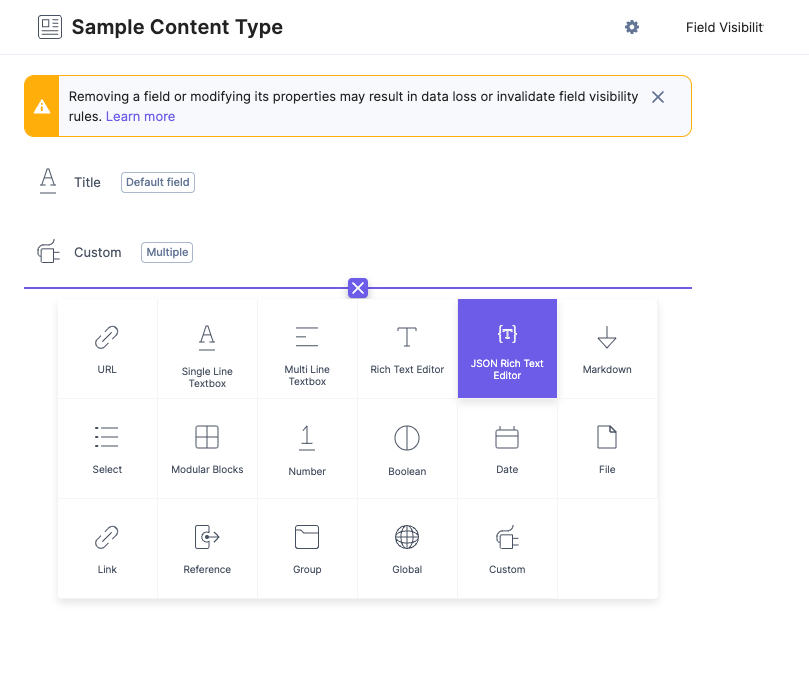
* The select the **Sample Content Type** content type you created during the entry sidebar exercise. Alternatively you can use other Content Type, these steps work for any content type.
* Add a JSON Rich Text Editor field to your content type
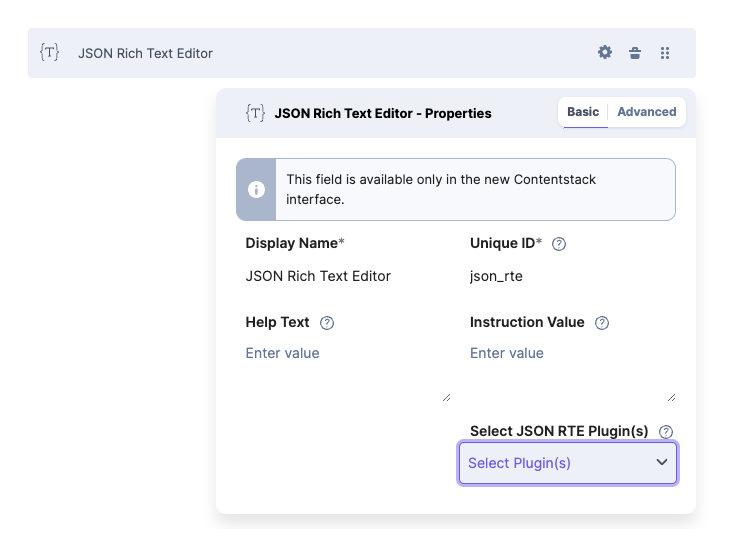
* Choose the _Sample App_ plugin
* 
* Save the content type and open an entry based on it. You can go to the Entries section as described on the previous Module where you created the entry sidebar location extension.
* 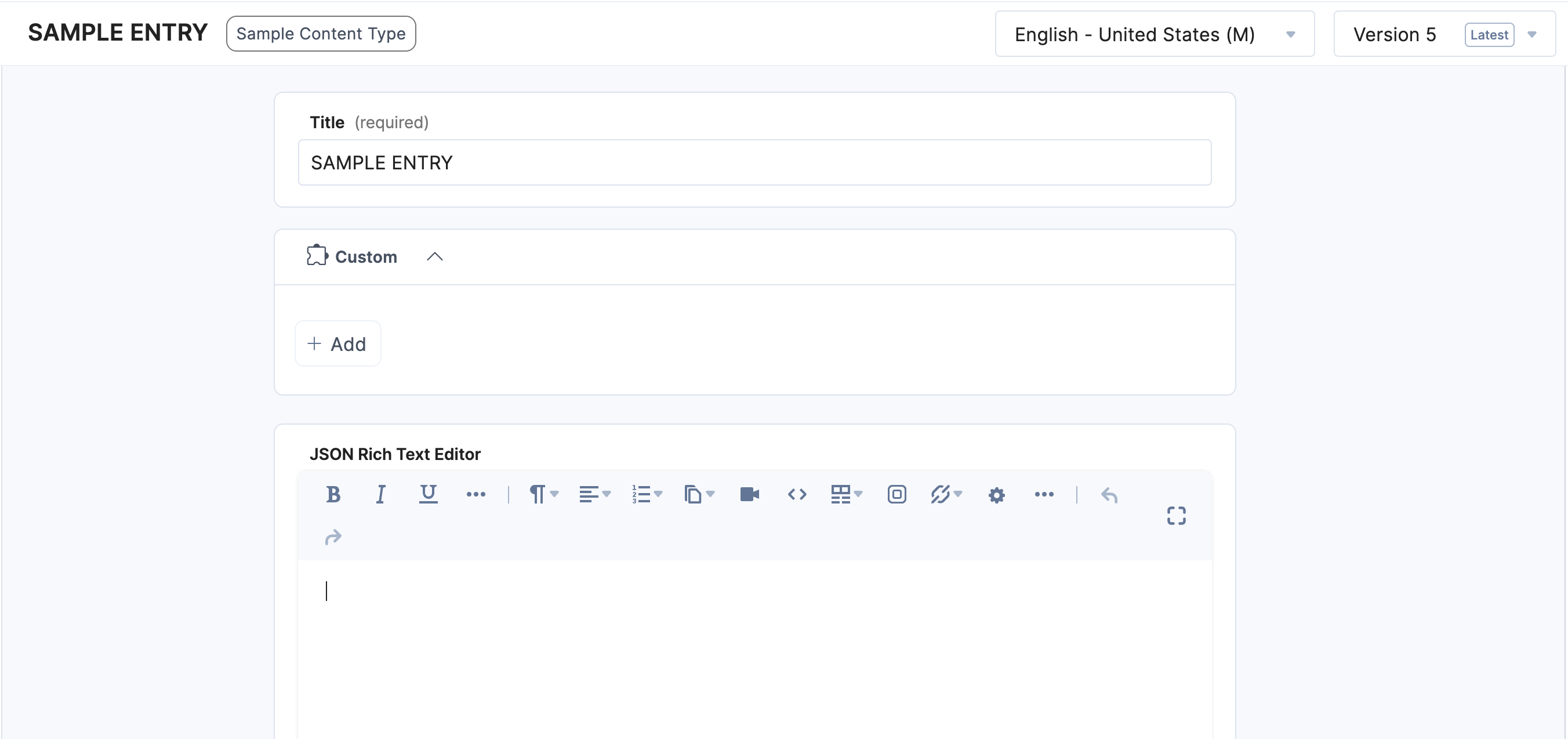
* Once in the editor view of the entry, navigate to the JSON RTE field, type some content and select it. For example type in _Marketplace App Example_.
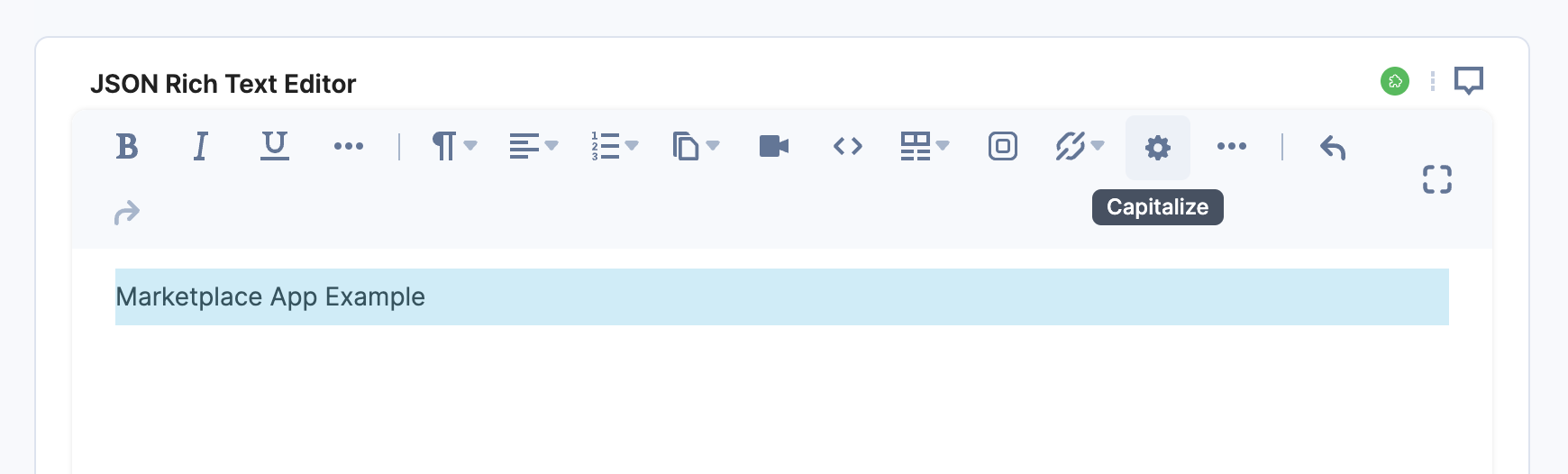
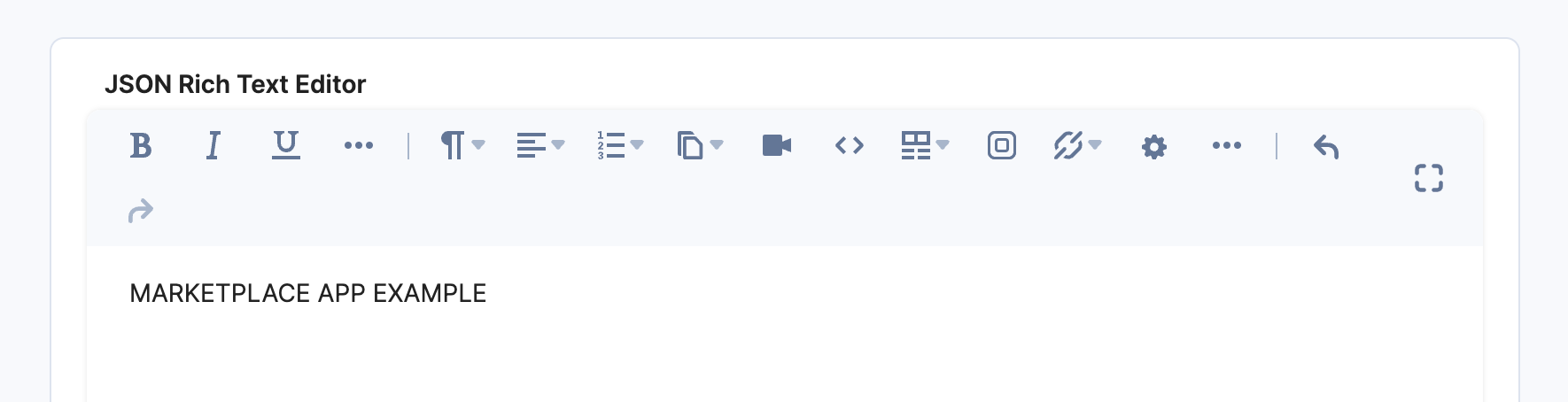
Once you have some text selected, click on the toolbar "settings" icon. The text should be capitalized:
**Tip**: make sure you go over the entire code in the file to get a better understanding on how the logic is implemented.
If you want to learn more about JSON RTE plugins, please visit our documentation: [Create JSON RTE Plugins](https://www.contentstack.com/docs/developers/json-rich-text-editor-plugins/create-new-json-rte-plugin)
Congratulations! You just finished implementing the last UI Location supported by Marketplace Apps.
In the next module you will get access to some best practices and useful tips to develop your Marketplace Apps.
## **Video: Implementing JSON RTE Plugin**
The following video walks you through the previous exercise steps so you can review and follow along:
#### Key takeaways
- Connect **Implementing App Locations: JSON RTE** back to your stack configuration before moving to the next module.
- Capture one concrete artifact (screenshot, Postman call, or code snippet) that proves the step works in your environment.
- Re-read the delivery versus management boundary for anything you changed in the entry model.
## Supplement for indexing
### Content summary
Implementing App Locations: JSON RTE. The JSON Rich Text Editor Plugins lets you add/create custom plugins to extend the functionality of your JSON Rich Text Editor as per your needs. You can use third-party applications to interact with your JSON Rich Text Editor content. Use Case With prebuilt plugins such as Highlight, Info Panel, and Word Count, you can enhance the JSON Rich Text Editor (JSON RTE) field. Instead of using separate custom fields to interact with the content within the JSON RTE, create and add plugins to your JSON RTE for real-time adaptiveness. Exercise 8 For this exercise you will need to navigate to a different location in the project directory to work on the JSON RTE plugin code. Once you complete the exerc
### Retrieval tags
- Implementing
- App
- Locations
- JSON
- RTE
- marketplace-apps
- lesson 13
- Implementing App Locations: JSON RTE
- marketplace-apps lesson
### Indexing notes
Index this lesson as a primary chunk tagged with lesson_id "13" and topics: [Implementing, App, Locations, JSON, RTE].
Parent course slug: marketplace-apps. Use asset_references URLs as thumbnail hints in search results when present.
Never surface LMS quiz content or assessment answers from this file.
### Asset references
| Label | URL |
| --- | --- |
| BuildingMarketApps\_L13\_img-1.png | `https://images.contentstack.io/v3/assets/bltebc53cfaf0dd6403/blt979797fe9bc4c1d2/67e19cad914c24e15e497198/BuildingMarketApps_L13_img-1.png` |
| BuildingMarketApps\_L13\_img-2.png | `https://images.contentstack.io/v3/assets/bltebc53cfaf0dd6403/blt51fdd596b74fba88/67e19cf8e5b23a6e6a9473b2/BuildingMarketApps_L13_img-2.png` |
| BuildingMarketApps\_L13\_img-3.png | `https://images.contentstack.io/v3/assets/bltebc53cfaf0dd6403/blte173e1cba4a4c832/67e19d24d148ed8ae2a3fd72/BuildingMarketApps_L13_img-3.png` |
| BuildingMarketApps\_L13\_img-4.png | `https://images.contentstack.io/v3/assets/bltebc53cfaf0dd6403/blt0f30322a1f5db900/67e19f04b9f9a644badc4021/BuildingMarketApps_L13_img-4.png` |
| BuildingMarketApps\_L13\_img-5.png | `https://images.contentstack.io/v3/assets/bltebc53cfaf0dd6403/blteab33dc0720c7457/67e19f7f42bb03fbb96247ae/BuildingMarketApps_L13_img-5.png` |
| BuildingMarketApps\_L13\_img-6.png | `https://images.contentstack.io/v3/assets/bltebc53cfaf0dd6403/blt5d06c6668747a45b/67e19fbc8f508c4aad13970d/BuildingMarketApps_L13_img-6.png` |
| BuildingMarketApps\_L13\_img-7.png | `https://images.contentstack.io/v3/assets/bltebc53cfaf0dd6403/blte7e41ae577695ea8/67e1a040e6ff226fb40d14da/BuildingMarketApps_L13_img-7.png` |
### External links
| Label | URL |
| --- | --- |
| Contentstack Academy home | `https://www.contentstack.com/academy/` |
| Training instance setup | `https://www.contentstack.com/academy/training-instance` |
| Academy playground (GitHub) | `https://github.com/contentstack/contentstack-academy-playground` |
| Contentstack documentation | `https://www.contentstack.com/docs/` |
| BuildingMarketApps\_L13\_img-1.png | `https://images.contentstack.io/v3/assets/bltebc53cfaf0dd6403/blt979797fe9bc4c1d2/67e19cad914c24e15e497198/BuildingMarketApps_L13_img-1.png` |
| BuildingMarketApps\_L13\_img-2.png | `https://images.contentstack.io/v3/assets/bltebc53cfaf0dd6403/blt51fdd596b74fba88/67e19cf8e5b23a6e6a9473b2/BuildingMarketApps_L13_img-2.png` |
| BuildingMarketApps\_L13\_img-3.png | `https://images.contentstack.io/v3/assets/bltebc53cfaf0dd6403/blte173e1cba4a4c832/67e19d24d148ed8ae2a3fd72/BuildingMarketApps_L13_img-3.png` |
| BuildingMarketApps\_L13\_img-4.png | `https://images.contentstack.io/v3/assets/bltebc53cfaf0dd6403/blt0f30322a1f5db900/67e19f04b9f9a644badc4021/BuildingMarketApps_L13_img-4.png` |
| BuildingMarketApps\_L13\_img-5.png | `https://images.contentstack.io/v3/assets/bltebc53cfaf0dd6403/blteab33dc0720c7457/67e19f7f42bb03fbb96247ae/BuildingMarketApps_L13_img-5.png` |
| BuildingMarketApps\_L13\_img-6.png | `https://images.contentstack.io/v3/assets/bltebc53cfaf0dd6403/blt5d06c6668747a45b/67e19fbc8f508c4aad13970d/BuildingMarketApps_L13_img-6.png` |
| BuildingMarketApps\_L13\_img-7.png | `https://images.contentstack.io/v3/assets/bltebc53cfaf0dd6403/blte7e41ae577695ea8/67e1a040e6ff226fb40d14da/BuildingMarketApps_L13_img-7.png` |
| Create JSON RTE Plugins | `https://www.contentstack.com/docs/developers/json-rich-text-editor-plugins/create-new-json-rte-plugin` |